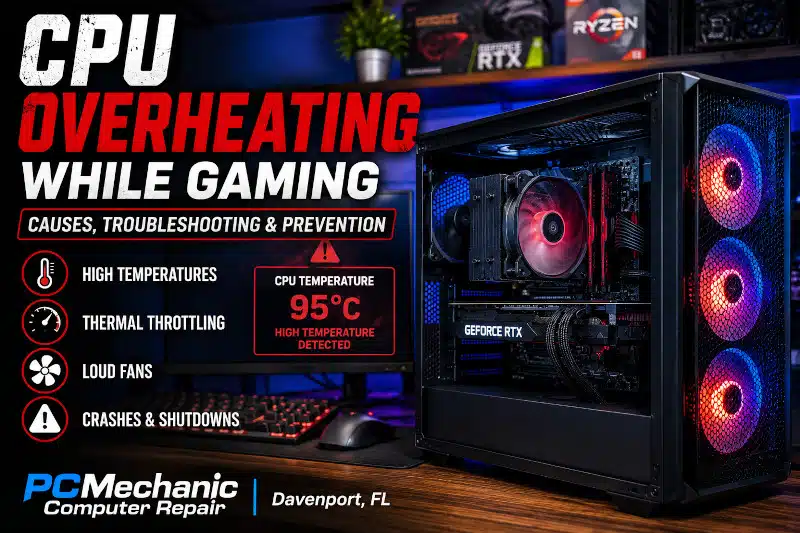
CPU overheating while gaming can cause performance drops, loud fan noise, instability, and unexpected shutdowns. Gaming places a sustained workload on the processor, so CPU temperatures naturally rise. However, excessive temperatures can indicate a problem with the cooler, airflow, thermal compound, fan operation, or system configuration.
Not every high temperature means the processor is overheating. Modern CPUs have different operating limits, and some processors normally run warmer than others under demanding workloads.
Therefore, diagnosing a Gaming PC thermal problem requires more than just looking at a single temperature reading.
At PCMechanic Computer Repair in Davenport, FL, I diagnose Gaming PCs experiencing high temperatures, thermal throttling, crashes, and other cooling-related problems. I can evaluate the CPU cooler, case airflow, fans, thermal compound, BIOS settings, and other hardware to determine what’s causing the excessive heat.
Is My Gaming CPU Actually Overheating?
A CPU generates heat whenever it operates. Gaming increases the workload, so higher temperatures are expected.
The important question is whether the temperature is appropriate for the specific processor and operating conditions.
There isn’t one universal temperature that means every CPU is overheating. Normal operating temperatures depend on several factors, including:
- CPU model and generation
- Manufacturer specifications
- Processor workload
- CPU power limits
- Type of CPU cooler
- Case airflow
- Fan configuration
- Ambient room temperature
- BIOS settings
For this reason, I don’t recommend diagnosing a thermal problem based on an arbitrary temperature threshold found online.
Instead, the processor’s specifications, workload, cooling configuration, and behavior should be considered together.
What Is CPU Thermal Throttling?
Thermal throttling is one of the most important concepts to understand when dealing with CPU overheating while gaming.
Modern processors include thermal protection mechanisms. When a CPU approaches its thermal limit, it can automatically reduce clock speed and power consumption to control temperature.
This helps protect the processor.
However, reduced clock speeds can also affect performance. During gaming, thermal throttling may contribute to inconsistent performance, stuttering, or lower frame rates when the CPU can no longer maintain its expected operating speed.
In more difficult situations, a computer may become unstable or shut down.
Thermal throttling doesn’t automatically mean the processor is defective. Instead, it can indicate that the cooling system isn’t adequately controlling CPU temperature under load.
Common Signs of CPU Overheating While Gaming
High temperature readings aren’t the only indication of a possible cooling problem.
Symptoms can include:
- CPU temperatures approaching thermal limits
- Performance drops after gaming for a while
- CPU clock speeds decreasing under sustained load
- Fans suddenly operating at very high speeds
- Excessive fan noise
- Stuttering or inconsistent performance
- System instability
- Freezing
- Unexpected shutdowns
- Temperature spikes that appear abnormal for the workload
However, several other hardware and software problems can cause similar symptoms.
For example, a failing power supply, unstable memory, a graphics card problem, or a software issue can also cause crashes or shutdowns.
Therefore, proper diagnosis matters before assuming CPU temperature is responsible.
Why Does CPU Overheating Happen While Gaming?
Gaming can place significant demand on a processor. As CPU utilization and power consumption increase, the cooling system must remove the additional heat.
If the cooling system can’t dissipate that heat effectively, CPU temperature rises.
Several different problems can cause this.
Inadequate CPU Cooler
A CPU cooler needs sufficient thermal capacity for the processor it cools.
A basic cooler may work adequately with a lower-power processor but struggle with a higher-performance CPU under sustained workloads.
This can also happen after a CPU upgrade. The new processor may fit the motherboard and operate correctly, but it may produce more heat than the previous cooling solution can comfortably manage.
If the existing cooler isn’t suitable for the processor or workload, my CPU Cooler Upgrade Service outlines options to improve CPU cooling.
Poor CPU Cooler Contact
Even a capable cooler can perform poorly when it doesn’t make proper contact with the processor.
Mounting pressure needs to be appropriate and reasonably even so heat can transfer effectively from the CPU into the cooler.
A mounting problem may result in unusually high temperatures even when the heatsink, radiator, and fans appear to be functioning normally.
This is one reason CPU cooling problems sometimes appear immediately after a cooler replacement, CPU upgrade, motherboard replacement, or other hardware work.
Thermal Compound Problems
Thermal compound fills microscopic imperfections between the processor’s heat spreader and the cooler’s contact surface.
Without appropriate contact and thermal interface material, heat transfer can suffer.
Thermal compound can also become a concern after a cooler has been removed and reinstalled. Improper application or poor cooler contact can contribute to higher temperatures.
However, replacing thermal paste shouldn’t automatically be treated as the solution to every overheating Gaming PC.
The complete cooling system should be evaluated.
Dust Buildup
Dust can gradually accumulate on heat sinks, radiators, filters, fans, and ventilation openings.
Heavy buildup can restrict airflow through a CPU air cooler or AIO radiator. Likewise, clogged case filters can reduce the amount of cooler outside air entering the computer.
The result can be higher temperatures throughout the system.
This is one reason preventive maintenance matters, particularly for Gaming PCs that operate for extended periods or in environments where dust accumulates quickly.
My Gaming PC Maintenance article discusses the broader role of preventive care in keeping a Gaming PC clean and operating properly.
Restricted Case Airflow
The CPU cooler doesn’t operate independently of the rest of the computer.
An air cooler relies on the surrounding case airflow to supply cooler air and remove heat. Likewise, an AIO radiator needs adequate airflow through its fans and radiator.
A case with restricted intake ventilation, insufficient exhaust, poorly positioned fans, or limited internal airflow can trap heat.
Component layout can also influence airflow.
If the current enclosure restricts cooling or doesn’t adequately support fans and radiators, my article, “Benefits of Upgrading PC Case,” explains how a better enclosure can improve airflow, cooling flexibility, cable management, and component space.
Failed or Poorly Performing Fans
Fans are critical to most Gaming PC cooling systems.
A failed CPU fan, radiator fan, or critical case fan can significantly reduce cooling performance.
Problems aren’t always as obvious as a fan that has completely stopped. A fan may operate intermittently, spin at an inappropriate speed, produce unusual noise, or fail to respond correctly to temperature changes.
Fan configuration can matter as well.
A computer may have several working fans but still have ineffective airflow because of their placement or direction.
AIO Pump Problems
An all-in-one liquid CPU cooler adds another component that can fail: the pump.
If coolant circulation is reduced or stops, CPU temperature can rise quickly even though the radiator fans continue spinning.
This can make an AIO problem confusing because the cooling system may appear to be operating normally at first glance.
Pump noise, abnormal temperature spikes, unusually rapid heating, or high CPU temperatures despite working radiator fans can justify further inspection.
If you’re considering replacing an existing liquid cooler, my article “All-in-One Liquid CPU Cooler: Pros and Cons” explains the advantages and limitations of AIO cooling.
Overclocking and CPU Power Settings
Increasing CPU frequency, voltage, or power limits can increase heat output.
An overclocked processor may therefore require substantially more cooling than the same CPU operating under less aggressive settings.
However, manual overclocking isn’t the only consideration.
Motherboard BIOS settings and manufacturer performance features can also affect processor power behavior.
Consequently, diagnosing CPU overheating while gaming may involve evaluating CPU settings alongside the physical cooling system.
High Ambient Room Temperature
A CPU cooler ultimately transfers heat into the surrounding environment.
Therefore, room temperature affects cooling performance.
A Gaming PC operating in a warm room generally can’t achieve the same component temperatures as an identical computer operating in a significantly cooler environment.
This doesn’t necessarily indicate a hardware fault.
Instead, ambient temperature should be considered when evaluating whether a temperature change is abnormal.
CPU Overheating vs. GPU Overheating
When a Gaming PC gets hot or becomes unstable, it’s easy to assume the CPU is to blame.
However, the CPU and graphics card have separate temperature sensors and cooling systems.
A GPU can operate at a high temperature while the CPU remains within its expected range. Likewise, the CPU can experience a cooling problem even when GPU temperatures are normal.
The heat generated by one component can also influence the overall temperature inside the case.
For example, a powerful graphics card can release substantial heat into the enclosure during gaming. Poor case airflow can then make it harder for the CPU cooling system to remove heat effectively.
Therefore, CPU and GPU temperatures should be evaluated independently while also considering overall case airflow.
Can More Case Fans Fix CPU Overheating?
Sometimes improved airflow helps, but simply adding more fans isn’t a guaranteed solution.
Cooling performance depends on:
- Case ventilation
- Fan size
- Fan placement
- Intake and exhaust arrangement
- CPU cooler design
- Radiator location
- Graphics card heat output
- Cable routing
- Dust filters
- Fan speed
- Ambient temperature
If the CPU cooler itself is inadequate or incorrectly mounted, adding case fans may have little effect on the underlying problem.
Likewise, adding fans to an enclosure with heavily restricted ventilation may produce limited improvement.
Case design also determines which fans, CPU coolers, and radiators the system can support. My guide to choosing the right Gaming PC case explains how airflow, radiator compatibility, cooler clearance, and component space affect case selection.
The cooling system needs to be evaluated as a whole.
Air Cooling vs. AIO Liquid Cooling for an Overheating CPU
An overheating CPU doesn’t automatically mean you need liquid cooling.
Quality air coolers can provide excellent thermal performance for many Gaming PCs. They are also mechanically simple and don’t contain a pump.
AIO liquid coolers can deliver strong cooling performance while allowing the radiator to be relocated within the case. Larger radiators can be useful for higher-power processors when the enclosure supports them.
However, an AIO isn’t automatically superior in every Gaming PC.
The best option depends on:
- CPU cooling requirements
- Case compatibility
- Radiator support
- Motherboard clearance
- RAM clearance
- Noise preferences
- Budget
- Reliability considerations
The cooler should match the processor and system, rather than being selected simply because it uses liquid cooling.
Can a CPU Cooler Upgrade Solve Overheating?
If the existing cooler can’t adequately handle the processor, upgrading it may significantly improve temperatures.
However, I recommend identifying the cause before replacing hardware.
A high-quality cooler won’t necessarily solve a problem caused by poor mounting, a failing fan, restricted case airflow, incorrect configuration, or another issue elsewhere in the system.
When a cooler upgrade is appropriate, compatibility must also be checked.
The replacement needs to work with the CPU socket, motherboard, RAM, case dimensions, and available radiator or fan mounting locations.
When a CPU cooler upgrade is appropriate, I can verify compatibility, professionally install the new cooler, apply thermal compound, evaluate airflow, configure the fans, and test CPU temperatures afterward.
Experiencing high CPU temperatures, thermal throttling, or excessive fan noise while gaming? Contact PCMechanic Computer Repair in Davenport, FL, for professional Gaming PC cooling diagnostics and CPU cooler service.

Preventing CPU Overheating While Gaming
Preventing thermal problems starts with maintaining an appropriate cooling environment for the hardware.
That includes keeping ventilation openings and cooling components reasonably clean, ensuring fans operate correctly, and using a cooler appropriate for the processor.
Case airflow also needs to match the heat produced by the installed hardware.
After a CPU, GPU, cooler, or case upgrade, check temperatures to ensure the new configuration operates as expected.
Furthermore, unusual temperature changes shouldn’t be ignored.
If a Gaming PC that previously maintained normal temperatures suddenly begins running significantly hotter under the same workload, something may have changed.
The cause could involve dust, a fan, cooler mounting, an AIO pump, thermal contact, configuration, or another hardware condition.
Identifying the change is more useful than simply adding additional cooling hardware without diagnosing the problem.
When CPU Overheating Requires Professional Diagnosis
Occasional high CPU utilization during gaming is normal.
However, professional diagnosis may be worthwhile when CPU overheating while gaming is accompanied by:
- Persistent thermal throttling
- Temperatures repeatedly approaching the CPU’s thermal limit
- Sudden temperature changes
- Excessive fan noise
- AIO pump concerns
- Crashes or freezing under load
- Unexpected shutdowns
- Cooling problems after a CPU or cooler upgrade
- Uncertainty about cooler or case compatibility
Crashes and shutdowns don’t always originate from CPU temperature, so I also evaluate other potential causes when necessary.
My Gaming PC Troubleshooting service and related diagnostic content cover broader hardware and stability problems when overheating isn’t the only possible explanation.
Professional CPU Cooling Service in Davenport, FL
At PCMechanic Computer Repair in Davenport, FL, I diagnose and service Gaming PCs experiencing overheating, excessive fan noise, thermal throttling, crashes, and cooling-related instability.
Depending on the problem, I can evaluate:
- CPU temperatures
- CPU cooler operation
- Air-cooler mounting
- AIO cooler operation
- Thermal compound and cooler contact
- CPU and radiator fans
- Case airflow
- Fan configuration
- Cooler compatibility
- BIOS fan settings
- Hardware stability
If the existing CPU cooler is inadequate, I can also install an appropriate replacement and test the computer afterward.
I work directly with each customer and computer rather than passing the system between multiple technicians.
Customers bring their Gaming PCs to me for service in Davenport, FL. I also serve customers from surrounding communities, including ChampionsGate, Loughman, Haines City, Four Corners, Celebration, Clermont, and Kissimmee.
Frequently Asked Questions About CPU Overheating While Gaming
What temperature is too hot for a CPU while gaming?
There isn’t one universal temperature that applies to every processor. CPU models have different thermal specifications and operating behavior. The processor’s specifications, workload, cooling system, and whether thermal throttling occurs should all be considered.
Why does my CPU only overheat while gaming?
Gaming increases processor workload and heat output. A cooling system that appears adequate during light use may struggle under sustained gaming loads. Cooler capacity, airflow, fan operation, mounting, and CPU settings can all contribute.
Can CPU overheating cause FPS drops?
Yes. If a processor reaches its thermal limits, it may reduce clock speed and power through thermal throttling. That reduction can affect performance in CPU-sensitive games.
Can CPU overheating cause my Gaming PC to shut down?
Severe thermal conditions can contribute to protective shutdowns. However, power supply problems, motherboard issues, memory instability, and other faults can also cause sudden shutdowns. Proper diagnosis is important.
Will replacing thermal paste fix an overheating CPU?
Sometimes thermal compound or cooler contact contributes to excessive temperatures, but replacing thermal paste isn’t a universal solution. The cooler, mounting, fans, airflow, CPU settings, and other conditions should also be evaluated.
Do I need an AIO cooler for gaming?
Not necessarily. Many Gaming PCs operate very well with an appropriately sized air cooler. AIO cooling can be useful for certain processors and configurations, but the best solution depends on CPU requirements and case compatibility.
Can a failing AIO cause CPU overheating?
Yes. Reduced coolant circulation or pump failure can cause CPU temperatures to rise even when the radiator fans are still operating.
Can poor case airflow make my CPU overheat?
Yes. Restricted intake or exhaust airflow can increase internal case temperature and reduce the effectiveness of the CPU cooling system.
Should I upgrade my CPU cooler if my processor runs hot?
Possibly. If the existing cooler doesn’t provide enough thermal capacity for the processor, an upgrade may help. However, the cause of the high temperature should be identified before replacing hardware.
Get Help With CPU Overheating While Gaming
CPU overheating while gaming shouldn’t be diagnosed based on a single temperature reading. The processor, CPU cooler, thermal contact, fans, case airflow, system configuration, and workload all contribute to operating temperature.
If your Gaming PC experiences excessive temperatures, thermal throttling, loud fans, crashes, or unexpected shutdowns, contact PCMechanic Computer Repair in Davenport, FL.
I can diagnose the cooling problem, determine whether the existing cooler is operating correctly, and recommend an appropriate repair or cooling upgrade when needed.