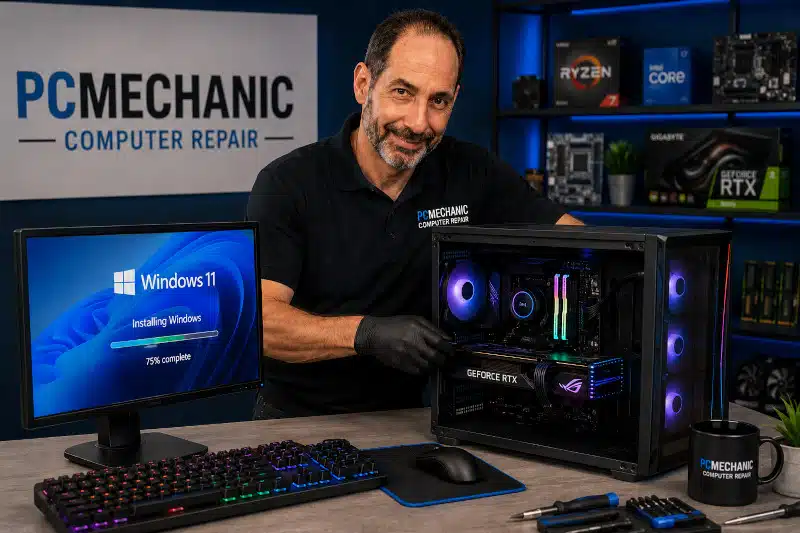
Windows Installation & Reinstallation Service is often the best solution when Windows becomes too damaged, unstable, or infected to repair efficiently. Although many software problems can be resolved without reinstalling the operating system, some situations require a clean installation to restore your computer’s reliability and performance.
At PCMechanic Computer Repair, I first diagnose the cause of the problem before recommending a Windows reinstallation. Whenever a less invasive repair is practical, I will explain those options first. However, if Windows has become severely corrupted or continues to experience recurring problems, reinstalling the operating system is often the fastest and most reliable way to return your computer to proper working condition.
Before beginning any installation, I also determine whether your important files can be safely backed up. Whenever possible, I preserve documents, photos, music, and other personal data before installing Windows. Afterward, I reinstall device drivers, apply Windows updates, verify system stability, and can reinstall your requested applications to help you get back to work as quickly as possible.
What Is a Windows Installation & Reinstallation Service?
Windows installation refers to installing Microsoft’s operating system onto a computer. This may involve installing Windows on a brand-new solid-state drive (SSD), replacing a failed hard drive, or setting up a newly built computer.
Windows reinstallation, on the other hand, involves removing an existing Windows installation and replacing it with a fresh copy. This process eliminates damaged system files, software conflicts, persistent malware, and many operating system problems that cannot be repaired through traditional troubleshooting.
Although Windows includes several recovery tools, they are not always enough to resolve severe operating system issues. In those situations, a clean Windows installation provides a fresh foundation for your computer.
When Is a Windows Reinstallation Service the Best Option?
Not every Windows problem requires reinstalling the operating system. In many cases, I can resolve issues through diagnostics, software repair, or recovery tools.
However, reinstalling Windows often becomes the preferred solution when problems keep recurring despite repeated repairs.
Common situations include:
- Windows fails to boot consistently
- Startup Repair cannot resolve boot errors
- Windows repeatedly enters an automatic repair loop
- Severe operating system corruption
- Persistent Blue Screen of Death (BSOD) errors
- Extensive malware or ransomware damage
- Missing or damaged Windows system files
- Windows updates continually fail
- Frequent freezing or unexpected crashes
- Multiple software conflicts causing instability
- Extremely poor performance after years of accumulated software
Instead of spending many hours attempting repairs that may not permanently solve the problem, reinstalling Windows often restores stability much more efficiently.
Signs You May Need a Windows Installation & Reinstallation Service
Windows corruption often develops gradually rather than appearing overnight. Therefore, recognizing the warning signs early may help prevent additional problems.
You may notice symptoms such as:
Frequent Blue Screen Errors
Unexpected blue screen crashes often indicate damaged system files, driver problems, failing hardware, or severe operating system instability.
If your computer frequently displays blue screen errors, I first determine whether the issue is hardware-related or Windows-related before recommending a reinstall.
Windows Won’t Boot Properly
Some computers never reach the Windows desktop. Instead, they become trapped in endless repair loops, display startup errors, or restart repeatedly.
If Windows cannot successfully load after multiple repair attempts, reinstalling the operating system may be the most effective solution.
If your computer refuses to start, my article “Computer Will Not Boot: Common Causes and Solutions” explains many of the underlying issues that can prevent Windows from loading properly.
Missing or Damaged System Files
Windows relies on thousands of critical system files to operate correctly. If enough of those files become damaged or disappear, Windows may become unstable or stop functioning entirely.
Although built-in repair tools can sometimes replace corrupted files, severe corruption often requires a complete Windows reinstallation.
Endless Error Messages
When Windows constantly displays application errors, registry problems, missing DLL files, or system warnings, the operating system may have accumulated years of software damage.
Rather than repairing individual problems one at a time, reinstalling Windows often removes the underlying cause.
Severe Malware Damage
Most malware infections can be removed without reinstalling Windows. However, certain infections significantly alter the operating system, leaving behind corrupted files or security vulnerabilities.
When that occurs, reinstalling Windows provides the safest way to restore the computer to a trusted state.
If your computer has experienced a serious malware infection, my Virus & Malware Removal Service explains how I safely remove infections and determine whether Windows can be repaired or should be reinstalled.
Extremely Slow Performance
An older Windows installation often accumulates:
- Unnecessary startup programs
- Software leftovers
- Broken registry entries
- Driver conflicts
- Temporary files
- Background services
Although a professional tune-up may significantly improve performance, reinstalling Windows sometimes becomes the better long-term solution.
If your computer simply feels sluggish, you may want to read my article, “Slow Computer Performance: Common Causes and Solutions,” first, as many performance issues can be resolved without reinstalling the operating system.
Should You Repair Windows or Choose a Windows Reinstallation Service?
In many situations, yes.
Before recommending a Windows reinstallation, I first evaluate whether the operating system can be repaired using Microsoft’s built-in recovery tools or other troubleshooting techniques. Choosing the least invasive solution often saves time and preserves your existing programs and settings.
Depending on the condition of your computer, I may recommend one or more of the following options:
- Startup Repair
- Windows System Restore
- System file repair
- Driver troubleshooting
- Malware removal
- Software conflict resolution
- Windows Reset
- Performance optimization
For example, if Windows recently became unstable after a software installation or driver update, Windows System Restore may return the system to a previous working state without requiring a complete reinstallation.
Likewise, resetting Windows can sometimes resolve software issues while preserving your personal files.
However, if those recovery methods fail or Windows remains unstable, a clean installation often provides the most reliable long-term solution.
Repair, Reset, or Reinstall: Which Option Is Right for Your Computer?
Not every Windows problem requires a complete reinstallation. In fact, many issues can be resolved using one of Microsoft’s built-in recovery tools. However, choosing the wrong option can sometimes waste valuable time or even make recovery more difficult.
Before recommending any repair, I evaluate your computer’s condition and determine which solution best balances preserving your data with restoring long-term reliability.
The following comparison explains when each option is typically appropriate.
| Option | Best Used When | Keeps Installed Programs? | Keeps Personal Files? |
|---|---|---|---|
| Windows System Restore | A recent driver installation, Windows update, or software change caused the problem. | ✅ Yes | ✅ Yes |
| Reset This PC | Windows is unstable, but the operating system can still access the recovery environment. | ❌ No | ✅ Usually (depending on the reset option selected) |
| Windows Reinstallation | Windows is severely corrupted, trapped in repair loops, infected by serious malware, or repeatedly crashes despite previous repair attempts. | ❌ No | ⚠️ Yes, if the drive is accessible and your files can be backed up beforehand. |
Windows System Restore
System Restore is often the least invasive recovery option. It returns Windows system files, drivers, and settings to an earlier restore point without affecting your personal documents, photos, or other data.
This option works well when a recent software installation, driver update, or Windows update introduced system instability.
Reset This PC
If System Restore cannot resolve the issue, Reset This PC may be the next logical step.
This Windows recovery feature reinstalls the operating system while keeping your personal files. However, it removes installed applications and many customized settings, so you’ll still need to reinstall your software afterward.
Although Reset This PC can resolve many software-related problems, it may not address severe operating system corruption or hardware issues.
Windows Reinstallation
A clean Windows reinstallation provides the most comprehensive solution when the operating system has become too damaged to repair effectively.
This option completely replaces the existing Windows installation, removing corrupted system files, persistent software conflicts, damaged user profiles, and malware remnants that may continue causing instability.
Before beginning a reinstallation, I always determine whether your important files can be backed up. Whenever possible, I preserve your personal data before installing a fresh copy of Windows.
Although reinstalling Windows requires more effort than other recovery options, it often delivers the most reliable long-term results for computers with severe software problems.
Which Solution Do I Recommend?
Every computer is different, so there isn’t a single answer that applies to every situation.
Rather than automatically recommending a Windows reinstallation, I begin by diagnosing your computer to identify the root cause of the problem. If System Restore, driver repair, malware removal, or Reset This PC can reliably resolve the issue, I’ll recommend the least invasive solution first.
However, when Windows is severely corrupted, stuck in an endless repair loop, or continues to crash despite previous repair attempts, a clean Windows installation is usually the most dependable path back to a stable, responsive computer.
By choosing the appropriate recovery method from the start, you can often save both time and unnecessary expense while ensuring your computer performs reliably again.
What Happens During My Windows Installation & Reinstallation Service?
Every computer is different. Therefore, I begin every Windows installation with a thorough diagnostic evaluation instead of immediately formatting the drive.
This approach allows me to identify whether the operating system is truly responsible for the problem or if failing hardware is causing the symptoms.
My Windows Installation & Reinstallation Service typically includes the following steps.
1. Diagnose the Computer
Before reinstalling Windows, I perform diagnostics to determine the root cause of the problem.
For example, I check for:
- Hard drive or SSD health
- Memory (RAM) issues
- Motherboard problems
- Driver conflicts
- Windows corruption
- Malware infections
- Boot failures
- Blue screen errors
If I discover any failing hardware, I will explain my findings before proceeding with the installation.
2. Back Up Your Important Files Whenever Possible
One of the biggest concerns customers have is whether they will lose their personal data.
Whenever the storage device is still accessible, I back up important files before reinstalling Windows.
Examples include:
- Documents
- Photos
- Videos
- Music
- Downloads
- Desktop files
- Financial records
- School or work files
If your computer’s storage drive has already failed, data recovery options may be more limited. However, I will always assess the drive’s condition before making recommendations.
If you would like to learn more about protecting your personal files, visit my Data Backup & File Transfer Service page.
3. Install a Clean Copy of Windows
Once your data has been secured, I install a fresh copy of Windows using Microsoft’s installation media.
A clean installation removes:
- Corrupted system files
- Malware remnants
- Broken Windows components
- Software conflicts
- Registry corruption
- Unnecessary pre-installed software
- Damaged user profiles
As a result, your computer starts with a clean, stable operating system.
4. Install Drivers and Windows Updates
After Windows has been installed, I install the appropriate drivers for your computer’s hardware.
This process typically includes:
- Graphics drivers
- Chipset drivers
- Network drivers
- Audio drivers
- Storage drivers
- Bluetooth drivers
- Wireless drivers
Next, I install the latest Windows updates to improve security, compatibility, and reliability.
5. Restore Your Personal Files
After Windows is fully configured, I restore your backed-up files whenever possible.
This helps you return to work without manually copying everything.
6. Install Requested Software
Many customers also need their everyday software reinstalled.
If requested, I can reinstall commonly used applications such as:
- Microsoft Office
- Web browsers
- Adobe Acrobat Reader
- Printers and scanner software
- Zoom
- Discord
- Steam
- Other customer-provided licensed software
Because every customer uses different applications, I tailor the installation to your specific needs.
7. Verify Everything Works Properly
Before returning your computer, I verify that everything is functioning correctly.
This includes checking:
- Windows activation
- Device Manager
- Driver installation
- Windows Updates
- Internet connectivity
- Audio
- Display settings
- USB ports
- Overall system stability
My goal is to return a computer that is stable, up to date, and ready for everyday use.
Will I Lose My Files During a Windows Reinstallation Service?
This is one of the most common questions I receive.
The answer depends on the condition of your computer and the storage device.
If your SSD or hard drive is still functioning properly, I can often back up your important files before reinstalling Windows.
However, if the storage device has experienced a catastrophic failure, some or all of your files may already be inaccessible.
For that reason, I always recommend maintaining regular backups instead of waiting until a problem occurs.
Whenever possible, I discuss backup options with you before beginning any work so you know exactly what to expect.
Windows Installation & Reinstallation Service on a New SSD
Many customers choose to combine a Windows reinstallation with a storage upgrade.
If your computer still uses a traditional hard disk drive (HDD), replacing it with a solid-state drive (SSD) can dramatically improve overall performance.
Benefits often include:
- Faster startup times
- Quicker program launches
- Improved responsiveness
- Faster Windows updates
- Reduced application loading times
- Greater reliability than aging hard drives
If your existing hard drive is showing signs of failure or simply no longer provides the performance you need, replacing it with a solid-state drive during a Windows installation is often one of the best upgrades you can make. If you’re considering an upgrade, my article on M.2 NVMe SSD for Gaming: Unlocking Next-Level Performance explains why modern SSDs deliver significantly faster speeds and greater reliability than traditional hard drives. The combination of a new SSD and a clean Windows installation frequently delivers faster startup times, improved responsiveness, and greater long-term reliability.
Windows Installation for Windows 10 or Windows 11
I install either Windows 10 or Windows 11, depending on your computer’s hardware compatibility and Microsoft’s current support requirements.
If your system meets the hardware requirements for Windows 11, upgrading may provide improved security features, enhanced performance, and continued support.
However, not every computer is compatible with Windows 11. In those cases, I will discuss the available options with you before beginning the installation.
If your computer is running an older, unsupported version of Windows, I also recommend reading my article, “Unsupported Windows Operating System: Dangers of Not Upgrading,” which explains the security and reliability risks associated with outdated operating systems.
Why Choose a Professional Windows Installation & Reinstallation Service?
Although Windows can be reinstalled at home, the process is not always straightforward.
For example, many computers require:
- Correct hardware drivers
- BIOS configuration
- Storage controller settings
- Windows activation verification
- Data backup
- Driver troubleshooting
- Software installation
- Performance optimization
In addition, a failed installation can sometimes leave a computer unbootable or make it much more difficult to recover personal files.
Because every computer is different, I tailor each Windows installation to the specific hardware and condition of the system.
Why Choose PCMechanic Computer Repair?
Choosing the right repair technician matters just as much as choosing the right repair.
When you bring your computer to PCMechanic Computer Repair, you work directly with me from start to finish. I personally diagnose your computer, explain my findings in clear language, and recommend the most practical solution based on your situation. My goal is never to reinstall Windows unnecessarily. Instead, I first determine whether a repair is possible before recommending a clean installation.
Customers choose my services because I provide:
- Honest diagnostic recommendations
- Personalized one-on-one service
- Windows 10 and Windows 11 installation
- Data backup assistance whenever possible
- Driver installation and Windows updates
- Requested software installation
- Thorough post-installation testing
- Fast turnaround on many repairs
- Convenient drop-off service in Davenport, Florida
Whether your computer needs a clean Windows installation or another type of repair, I focus on delivering reliable service without recommending unnecessary work.
Need a Professional Windows Installation & Reinstallation Service?
If your computer won’t boot, keeps crashing, or has become too unstable to use, don’t waste time fighting recurring errors. I can diagnose the problem, back up your important files whenever possible, and professionally reinstall Windows so your computer is ready to use again.

Frequently Asked Questions
How long does a Windows installation or reinstallation take?
The time required depends on your computer’s hardware, whether your files need to be backed up, and how many Windows updates or applications must be installed afterward. Many installations can be completed within 24 hours, although systems requiring hardware replacement or extensive software installation may take longer.
Can you save my files before reinstalling Windows?
Whenever the storage device is still functioning and your files remain accessible, I back up important data before reinstalling Windows. However, if the drive has failed or the files have already become corrupted, recovery may not always be possible.
Will I lose my programs?
Yes. A clean Windows installation removes installed programs because the operating system is replaced with a fresh copy. If you have installation media or valid license keys, I can reinstall many of your applications after Windows has been installed.
Do I need my Windows product key?
Most modern computers activate Windows automatically because the product key is stored in the computer’s firmware or linked to your Microsoft account. If activation requires additional information, I will let you know before proceeding.
Can Windows be repaired instead of reinstalled?
Often, yes. Before recommending a Windows reinstallation, I first determine whether the problem can be resolved through Startup Repair, System Restore, driver troubleshooting, malware removal, or other repair methods. I only recommend reinstalling Windows when it provides the most practical long-term solution.
Can you install Windows on a new SSD?
Absolutely. Installing Windows on a new SSD is one of the best ways to improve an older computer’s performance. If your existing hard drive is failing or simply slowing your system down, I can install a new SSD, install Windows, and restore your files whenever possible.
Do you install both Windows 10 and Windows 11?
Yes. I install both Windows 10 and Windows 11, depending on your computer’s hardware compatibility and Microsoft’s current support requirements.
Can a virus require Windows to be reinstalled?
In many cases, malware can be removed without reinstalling Windows. However, severe infections that have damaged the operating system or compromised system integrity may require a clean installation to fully restore the computer.
Should I choose Reset This PC or a clean Windows installation?
That depends on the condition of your computer. Reset This PC can resolve many software issues while preserving personal files in some situations. However, if Windows is severely corrupted, stuck in repair loops, or continues experiencing recurring problems, a clean installation is often the better long-term solution.
What should I do before bringing my computer in?
If your computer is still operational, back up important files. Also, bring your power adapter if you have a laptop, and any passwords or software license information you think you may need. If you have questions, I can explain what is helpful before your appointment.
Schedule Your Windows Installation & Reinstallation Service Today
A damaged Windows installation doesn’t always mean your computer has reached the end of its life. In many cases, a clean installation can eliminate years of software problems, restore stability, and significantly improve performance.
Before recommending a reinstall, I carefully diagnose your computer to determine whether a less invasive repair is possible. If a fresh Windows installation is the best solution, I will guide you through the process, explain what to expect, and help protect your important files whenever possible.
Whether your computer won’t boot, crashes repeatedly, or has become too unstable to use, I’m here to help you get it running reliably again.
Ready to Get Your Computer Running Reliably Again?
Don’t let Windows errors, startup problems, or software corruption keep you from using your computer. Contact PCMechanic Computer Repair today to schedule your professional Windows Installation & Reinstallation Service in Davenport, Florida.
