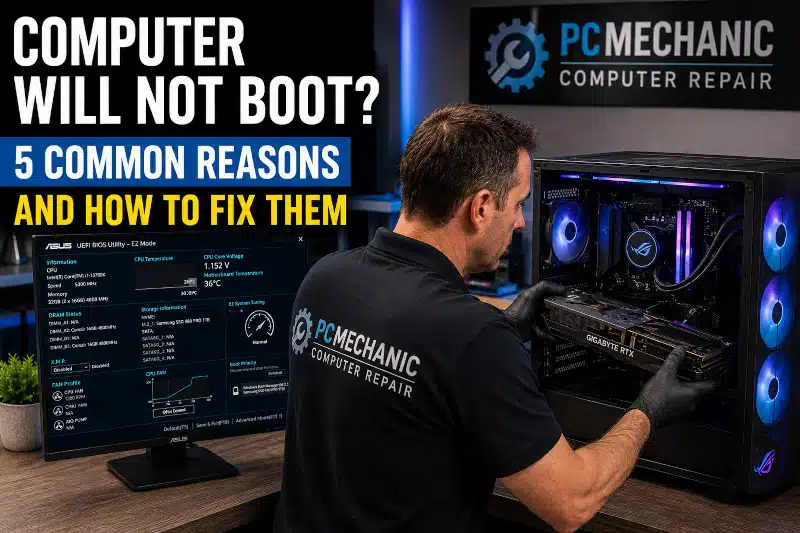
If your computer will not boot, don’t panic. Although it’s frustrating when your desktop or laptop won’t start, many boot problems are fixable. In some cases, the solution is as simple as correcting a BIOS setting or replacing a faulty power supply. However, other startup issues may require professional diagnostics to identify the exact cause.
It’s important to understand the difference between a computer that won’t turn on and one that won’t boot. If your computer has no lights, fans, or signs of power, the problem is usually hardware-related. On the other hand, if it powers on but Windows never loads, displays a black screen, becomes stuck on the manufacturer’s logo, or enters an endless startup repair loop, the issue could involve your storage drive, motherboard, BIOS settings, or operating system.
Fortunately, identifying the symptoms can narrow down the cause and help determine the best course of action. Below are five of the most common reasons a computer will not boot and what you can do to troubleshoot each problem.
What Does It Mean When a Computer Will Not Boot?
A computer goes through several steps before Windows loads. First, the power supply delivers electricity to the system. Next, the motherboard performs a Power-On Self-Test (POST) to verify that essential hardware components are functioning correctly. Then, the BIOS or UEFI firmware locates the boot drive and begins loading Windows.
If any part of this startup sequence fails, your computer may:
- Display a black screen.
- Freeze on the manufacturer’s logo.
- Show an “Operating System Not Found” error.
- Continuously restart
- Enter Windows Automatic Repair repeatedly.
- Produce beep codes or diagnostic LED lights.
- Display a flashing cursor without loading Windows.
Because several components work together during startup, accurate diagnostics are essential before replacing any hardware.
5 Common Reasons a Computer Will Not Boot
1. Faulty Power Supply
One of the most common hardware failures is a defective power supply. The power supply converts household electricity into the voltages your computer’s internal components require. If it fails, the computer may receive little or no power.
Common symptoms include:
- No power lights
- Fans never spin
- The computer immediately shuts off.
- Random power failures
- Burning smell from the rear of the computer
Before replacing the power supply, it’s important to perform proper diagnostic testing. Loose cables, a faulty wall outlet, or even a defective surge protector can produce similar symptoms. Once testing confirms that the power supply has failed, replacing it usually restores normal operation.
If your computer powers on briefly and then shuts off, a failing power supply should be considered one of the first components to test.
2. Failed Hard Drive or SSD
Your hard drive or solid-state drive (SSD) stores Windows, your applications, and your personal files. If the storage device begins to fail, Windows may no longer be able to access the files it needs at startup.
Signs of a failing drive include:
- Clicking or grinding noises (hard drives)
- Extremely slow startup
- Frequent blue screen errors
- “Operating System Not Found”
- SMART warning messages
- Windows freezing during boot
In many situations, replacing the failed drive and reinstalling Windows resolves the startup issue. If the drive still responds, your important files may also be recoverable before it is replaced.
Solid-state drives generally fail differently than traditional hard drives. Instead of producing mechanical noises, they often stop responding without warning. Therefore, routine backups remain the best protection against unexpected drive failure.
If you notice your computer becoming progressively slower before it stops booting altogether, the storage drive could be the underlying cause. My article, Slow Computer Performance: Why Your PC Is Lagging and How to Fix It, explains several early warning signs that may indicate a failing drive before it prevents Windows from starting.
3. Damaged Motherboard
The motherboard connects every major component inside your computer, including the processor, memory, storage devices, graphics card, and power supply. Consequently, a motherboard failure can prevent the entire system from completing startup.
Possible signs include:
- No POST (Power-On Self-Test)
- Continuous rebooting
- Beep codes during startup
- Diagnostic LEDs remain lit
- USB ports stop functioning
- Random freezing before the failure occurred
Motherboards can fail because of electrical surges, overheating, liquid damage, or simply age. Since many motherboard symptoms resemble those of other hardware failures, replacing parts without proper testing can become expensive.
Instead, each component should be tested individually to confirm whether the motherboard is actually responsible for the boot failure. Once diagnostics verify the motherboard has failed, replacement is usually the most practical solution.
4. Corrupted Windows Operating System
Even if your computer’s hardware is functioning properly, Windows itself can become corrupted, preventing the system from starting. Missing or damaged system files, failed Windows updates, malware infections, or unexpected power outages can interrupt the boot process.
Common symptoms include:
- Blue Screen of Death (BSOD)
- Windows Automatic Repair loop
- Error messages about missing system files
- Endless spinning circle during startup
- Windows logo appears but never finishes loading
Before reinstalling Windows, try using the built-in Startup Repair or System Restore tools. These utilities can sometimes repair damaged startup files without affecting your personal data.
However, if Windows cannot be repaired, a clean installation may be necessary. Before reinstalling the operating system, always back up important files whenever possible. If malware has made Windows unstable, my Computer Virus Removal Service: Protecting Your Device and Data page explains how I remove infections and help protect your important files.
If your PC is running an outdated version of Windows, startup problems may become more common as support ends and compatibility issues increase. My article, Unsupported Windows Operating System: Dangers of Not Upgrading, explains why keeping Windows up to date is important for both reliability and security.
5. Incorrect BIOS or UEFI Settings
The BIOS or UEFI firmware initializes your computer’s hardware before Windows begins loading. If these settings become corrupted or are configured incorrectly, your computer may not locate the boot drive or complete startup.
Symptoms may include:
- Computer remains on the manufacturer’s logo
- “No Boot Device Found” message
- Boot drive is not detected
- Black screen immediately after powering on
- Startup problems following a BIOS update
Incorrect boot order, a failing CMOS battery, or interrupted BIOS updates can all contribute to startup issues. Fortunately, resetting the BIOS to its default settings often resolves configuration-related problems. In some situations, updating the BIOS firmware may also correct compatibility or stability issues.
Because an incorrect BIOS update can render a motherboard unusable, firmware updates should be performed only when necessary and in accordance with the manufacturer’s instructions. If you’re considering updating your motherboard firmware, read my guide on BIOS Update for Gaming PCs to learn when an update is beneficial and when it’s best to leave the current version alone.
How to Troubleshoot a Computer That Will Not Boot
If your computer will not boot, there are several basic troubleshooting steps you can perform before assuming the worst.
Check for power
Verify that the power cable is securely connected and that the electrical outlet is working properly. If you’re using a surge protector, make sure it hasn’t failed.
Disconnect external devices
Printers, USB drives, external hard drives, and other peripherals can occasionally interfere with the boot process. Disconnect everything except the keyboard, mouse, and monitor before trying again.
Listen and observe
Pay attention to beep codes, flashing diagnostic lights, unusual noises, or error messages. These clues can help identify whether the issue involves the power supply, memory, motherboard, or storage drive.
Try Safe Mode
If Windows begins loading but fails before reaching the desktop, Safe Mode may allow you to uninstall a faulty driver, remove problematic software, or perform a System Restore.
Avoid replacing parts without testing
Many hardware failures begin with subtle symptoms before the computer stops starting altogether. My article, My Computer Broke—What to Do Next, covers several common causes and offers tips to help prevent future problems.
Many startup symptoms overlap. For example, a failing power supply, defective motherboard, or damaged storage drive can all prevent a computer from booting. Proper diagnostic testing helps identify the actual cause before unnecessary parts are replaced.
When Professional Computer Repair Is the Best Option
If you’ve completed the basic troubleshooting steps and your computer still won’t boot, professional diagnostics can identify the exact cause. At PCMechanic Computer Repair, I test the power supply, motherboard, storage drive, memory, and Windows installation before recommending any repairs. This approach helps avoid replacing working components and saves you money.
At PCMechanic Computer Repair, I perform thorough hardware and software diagnostics to identify the exact cause of startup problems. Whether your computer has a failed power supply, a defective motherboard, a damaged storage drive, a corrupted Windows installation, or incorrect BIOS settings, I’ll recommend the most cost-effective repair.
I proudly serve customers in Davenport, Champions Gate, Four Corners, Haines City, Celebration, Kissimmee, and nearby communities with honest, reliable computer repair services.
If your computer refuses to start, don’t assume it needs to be replaced. Many boot problems can be resolved quickly once the underlying cause is identified.
Still can’t figure out why your computer won’t boot? Schedule a professional diagnostic with PCMechanic Computer Repair and get your PC back up and running quickly.

Frequently Asked Questions
Why does my computer turn on but not boot?
If the fans and lights come on but Windows never loads, the problem may involve the storage drive, motherboard, BIOS settings, memory, or the Windows operating system.
Can a bad hard drive stop a computer from booting?
Yes. Since Windows is stored on your hard drive or SSD, a failing storage device can prevent the operating system from loading properly.
Can faulty RAM prevent a computer from starting?
Absolutely. Defective memory can cause failed POST tests, continuous rebooting, beep codes, or a blank display during startup.
Should I reinstall Windows if my computer won’t boot?
Not immediately. Hardware problems often produce the same symptoms as corrupted Windows files. Proper diagnostics should be performed before reinstalling the operating system.
Will resetting the BIOS fix boot problems?
Sometimes. If incorrect BIOS settings are preventing your computer from finding the boot drive, restoring the default settings may resolve the issue.
When should I seek professional computer repair?
If your computer continues to fail after basic troubleshooting, or if you’re unsure which component has failed, professional diagnostics can accurately identify the problem and help avoid unnecessary replacement parts.
Need Computer Repair in Davenport, FL?
If your computer will not boot, don’t replace it until you’ve had it professionally diagnosed. Many startup problems are repairable, and identifying the root cause can save you hundreds of dollars compared to purchasing a new computer.
At PCMechanic Computer Repair, I provide dependable computer diagnostics and repair services for desktops and supported laptops throughout Davenport, Champions Gate, Four Corners, Haines City, Celebration, Kissimmee, and surrounding areas. Whether your computer has a hardware failure or a Windows startup problem, I’ll determine the cause and recommend the most practical solution.
If you’re unsure what’s preventing your computer from starting, contact PCMechanic Computer Repair today to schedule a diagnostic appointment.
Don’t replace your computer until you know what’s wrong. Contact PCMechanic Computer Repair in Davenport, FL, for expert diagnostics and dependable computer repair services.