
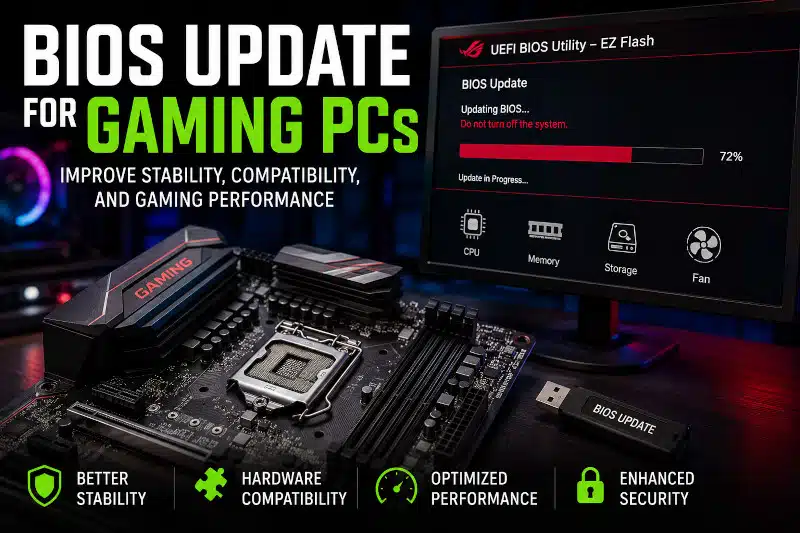
A BIOS update for gaming PCs can improve hardware compatibility, system stability, security, and gaming performance. However, updating the BIOS incorrectly can also create serious problems for your motherboard. Understanding when and how to update the BIOS safely helps protect your gaming PC while keeping it optimized for modern hardware and demanding games.
What Does a BIOS Update Do?
The BIOS, also called UEFI firmware on modern systems, is low-level software stored on your motherboard. It controls communication between major hardware components before Windows loads. A BIOS update replaces the existing motherboard firmware with a newer version released by the manufacturer. Understanding different Motherboard Form Factors can also help when upgrading or replacing gaming PC hardware.
A BIOS update may provide:
- Improved CPU compatibility
- Better RAM stability
- Enhanced system security
- Bug fixes and stability improvements
- Better thermal and fan control
- Improved hardware communication
- Support for newer gaming technologies
Without updated firmware, newer hardware components may not function correctly. In some cases, a gaming PC may fail to boot or experience random crashes, freezes, or reduced performance.
Why a BIOS Update Is Important for Gaming PCs
Gaming PCs rely on stable communication between the processor, graphics card, memory, storage devices, and motherboard. Even small firmware problems can affect gaming performance.
1. Enhanced Hardware Compatibility
One of the main reasons to update the BIOS is hardware compatibility. Newer CPUs, GPUs, and RAM kits often require updated motherboard firmware. Before installing a new graphics card, review these Graphics Card Upgrade Tips to ensure compatibility with your gaming PC. Without the proper BIOS version, your gaming PC may not recognize upgraded hardware correctly.
For example, many motherboard manufacturers release BIOS updates to support newer AMD Ryzen or Intel processors. Installing the latest compatible firmware can prevent boot issues and stability problems after upgrading components.
2. Improved System Stability
Outdated BIOS firmware sometimes causes system crashes during gaming sessions. BIOS updates frequently fix bugs that lead to such issues.
- Random blue screens
- Freezing during gameplay
- Boot failures
- Memory instability
- Hardware communication errors
Keeping BIOS firmware up to date can help improve system reliability during demanding gaming sessions.
3. Better Security Protection
Modern BIOS updates often include important security patches. Firmware vulnerabilities can expose systems to low-level attacks that bypass traditional antivirus protection.
Because many gamers store personal information, payment methods, and online gaming accounts on their systems, maintaining BIOS security is an important part of protecting sensitive data.
4. Performance and Thermal Improvements
Some BIOS updates improve system efficiency by refining voltage control, thermal management, and fan operation. If your system struggles with high temperatures during gameplay, you may also want to read about CPU Overheating While Gaming.
These optimizations can help gaming PCs maintain better temperatures and more stable performance under heavy workloads.
In some cases, BIOS updates also improve overclocking support and memory compatibility, allowing systems to run more efficiently with high-performance hardware.
Proper airflow and cooling also contribute to BIOS-controlled thermal performance. Choosing the right Gaming PC Case helps improve airflow and hardware compatibility in gaming systems.
When Should You Update Your BIOS?
A BIOS update is not always necessary. Unlike normal software updates, BIOS firmware should only be updated when there is a valid reason.
You should consider updating the BIOS if:
- You are installing a newer CPU
- Your gaming PC experiences stability problems
- Your motherboard manufacturer recommends an update
- Your system has RAM compatibility issues
- Security vulnerabilities have been identified
- Your PC fails to recognize certain hardware properly
However, if your gaming PC is stable and functioning correctly, updating the BIOS may not provide noticeable improvements.
Risks of Updating BIOS
Because BIOS updates should never be interrupted, it is extremely important to ensure your power supply is stable. A failing PSU can cause shutdowns during the update process, potentially corrupting the motherboard firmware. Learn more about common signs of Power Supply Failure.
Although BIOS updates can provide important benefits, the process also carries some risks.
Potential problems include:
- Installing the wrong BIOS version
- Power loss during the update
- Corrupted firmware files
- Interrupted installation process
- Motherboard failure or “bricking.”
Because BIOS firmware operates at a low level, an unsuccessful update can prevent the motherboard from booting properly.
For this reason, it is important to follow the manufacturer’s instructions carefully and avoid shutting down the system during the update process.
How to Update BIOS Safely
Updating BIOS safely requires patience and preparation. The exact process varies by motherboard manufacturer, but most updates follow similar steps.
STEP 1: Identify Your Motherboard Model
First, determine your exact motherboard model and current BIOS version. Downloading the wrong firmware can damage the motherboard.
STEP 2: Download the Correct BIOS File
Visit the official motherboard manufacturer’s website and locate the latest BIOS version for your specific model.
STEP 3: Prepare a USB Flash Drive
Most BIOS utilities require a USB drive formatted in FAT32.
STEP 4:Backup Important BIOS Settings
If you use custom fan curves, overclocking settings, or boot configurations, write them down before updating.
STEP 5: Enter the BIOS or UEFI Interface
Restart your gaming PC and press the appropriate key during startup, such as:
- DEL
- F2
- F12
- ESC
STEP 6: Launch the BIOS Flash Utility
Most modern gaming motherboards include built-in flashing utilities such as:
- ASUS EZ Flash
- MSI M-Flash
- Gigabyte Q-Flash
- ASRock Instant Flash
7: Do Not Interrupt the Process
Once the update begins, do not restart or power off the computer. Interrupting the process can corrupt the motherboard firmware.
How to Access BIOS on a Gaming PC
Many users are unsure how to enter BIOS settings on modern systems. The most common method is to press a specific key immediately at startup.
Common BIOS access keys include:
- DEL
- F2
- ESC
- F10
You can also access UEFI firmware through Windows Advanced Startup settings.
Is a BIOS Update Worth It for Gaming?
In certain situations, a BIOS update can improve gaming stability, hardware compatibility, and overall system reliability. However, BIOS updates rarely increase FPS dramatically on their own.
Instead, the biggest benefits usually include:
- Better compatibility with modern CPUs
- Improved memory stability
- Reduced crashes
- Better thermal performance
- Improved motherboard reliability
If your gaming PC already runs smoothly, updating the BIOS may not be necessary unless the motherboard manufacturer recommends it.
Professional BIOS Update Services
Updating motherboard firmware can feel intimidating, especially for users unfamiliar with BIOS settings and motherboard recovery procedures. Installing incorrect firmware or interrupting the process can create serious problems.
At PCMechanic Computer Repair, BIOS updates are typically performed after CPU upgrades, motherboard replacements, and troubleshooting gaming PC stability issues. Ensuring motherboard compatibility and firmware versions beforehand helps minimize the chance of BIOS update failures.
If you are unsure whether your gaming PC needs a BIOS update, professional assistance can help prevent costly mistakes while ensuring your system remains stable and optimized.
PCMechanic Computer Repair in Davenport, FL, also provides gaming PC upgrades, hardware installation, cooling improvements, motherboard replacements, and performance optimization services for gamers looking to improve their systems.
Contact me today to schedule a BIOS evaluation or gaming PC diagnostic service.
