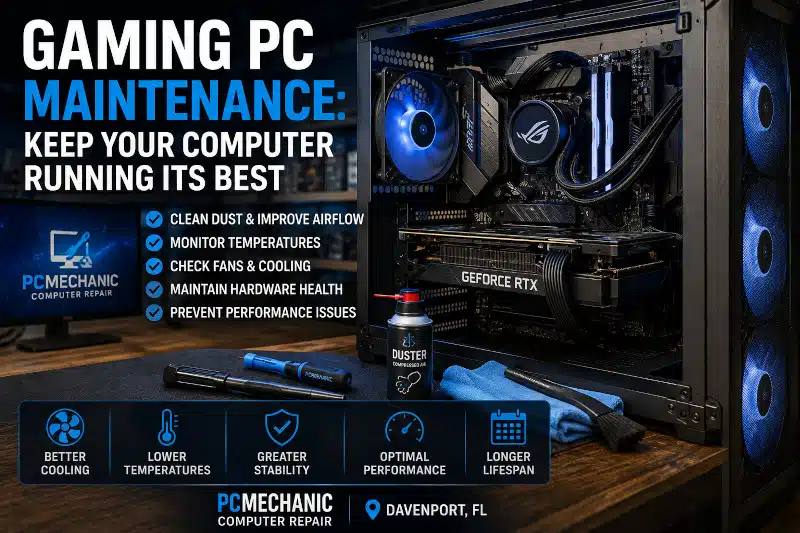
Gaming PC maintenance is important because gaming computers place sustained demands on processors, graphics cards, cooling systems, and power supplies. A system may appear completely normal during everyday use but develop high temperatures, excessive fan noise, crashes, or performance problems after several minutes of gaming.
Regular maintenance can help your gaming PC operate reliably and make it easier to detect developing hardware or cooling problems.
Gaming PCs also require many of the same routine maintenance practices as other computers. These include Windows updates, malware protection, backups, storage monitoring, and general software maintenance.
This article focuses specifically on cooling, airflow, temperatures, and hardware conditions that deserve additional attention in a gaming PC.
Why Gaming PC Maintenance Matters
Gaming PCs often contain components that consume considerably more power and generate more heat than those found in basic everyday computers.
A powerful graphics card can produce substantial heat during gaming. Meanwhile, the processor, power supply, memory, storage, and other components also contribute to the case’s internal temperatures.
As a result, cooling becomes especially important during extended gaming sessions.
Dust buildup, failing fans, restricted airflow, or an aging cooling system can gradually change how the computer operates under load. Therefore, monitoring temperature and cooling trends can help identify a developing problem before it leads to repeated instability.
Maintenance isn’t about making unnecessary changes to a computer that’s already working properly. Instead, the goal is to keep existing hardware operating under appropriate conditions and to recognize unusual behavior as it develops.
Keep Dust From Restricting Gaming PC Airflow
Dust is one of the most common maintenance concerns inside a gaming PC.
Cooling fans continuously move air through the computer. Unfortunately, that airflow also carries dust into the case. Filters can reduce the amount that enters, but they cannot eliminate it completely.
Over time, dust can accumulate on:
-
Front intake filters
-
Case fans
-
CPU coolers
-
Radiators
-
Graphics card heatsinks and fans
-
Power supply vents
-
Interior ventilation openings
As dust accumulates, airflow may become restricted. Consequently, fans may need to spin faster to maintain acceptable temperatures.
A computer that gradually becomes louder during gaming may therefore deserve closer inspection.
How quickly dust accumulates depends on the environment. A computer positioned near the floor, for example, may collect dust more quickly than one located on a clean, elevated surface.
The goal isn’t to make the inside of the PC spotless. Instead, keep cooling paths, filters, heatsinks, and fans from becoming heavily obstructed.
Pay Attention to CPU and GPU Temperatures While Gaming
Temperature is especially important when evaluating gaming PC maintenance because the processor and graphics card can remain under substantial load for extended periods.
Modern processors and graphics cards include thermal protection and automatically adjust their behavior as temperatures change. However, a significant change in your system’s operating temperature can indicate a cooling problem.
For example, you may notice:
-
Fans becoming unusually loud
-
Performance declining after several minutes of gaming
-
Games suddenly stuttering
-
Clock speeds dropping under sustained load
-
The computer freezing or restarting
-
The system shutting down during demanding games
Temperature alone doesn’t always identify the cause. A hot CPU could result from a failing fan, a cooler problem, poor airflow, incorrect mounting, or another issue.
Likewise, a graphics card running warmer than usual could indicate restricted airflow, dust accumulation, or a problem with its cooling system.
If your processor is experiencing temperature issues under gaming loads, my article “CPU Overheating While Gaming” explains the symptoms and common causes in greater detail.
Noticing crashes, overheating, shutdowns, or unusual performance while gaming? Contact PCMechanic Computer Repair in Davenport, FL, and I’ll diagnose the problem before it leads to unnecessary parts replacement.

Check Gaming PC Fans and Cooling Hardware
Gaming computers often rely on several cooling devices working together.
A typical system may include front intake fans, rear and top exhaust fans, CPU cooling fans, graphics card fans, and power supply cooling. Some systems also use an all-in-one liquid cooler with a radiator, fans, and a pump.
Because of this, a single cooling problem can affect more than one component.
Listen for changes in fan behavior. Grinding, rattling, intermittent operation, or a fan that no longer spins may indicate that the fan is wearing out.
Also pay attention to changes in an AIO liquid cooler. Unusually high CPU temperatures, unexpected pump noises, or declining cooling performance can indicate that the cooling system needs attention.
However, liquid cooling isn’t automatically necessary for every gaming computer. A properly selected air cooler can provide excellent cooling for many processors.
If the existing CPU cooler cannot adequately control temperatures, a CPU Cooler Upgrade Service may provide a more appropriate cooling solution.
Make Sure Your Gaming PC Has Proper Case Airflow
Good cooling requires more than installing powerful fans.
Air must be able to enter the case, move across heat-producing components, and leave the enclosure efficiently.
Most gaming computers use a combination of intake and exhaust fans. Front or bottom fans commonly bring cooler air into the case, while rear or top fans exhaust warmer air.
However, the case itself can limit airflow.
Restricted front panels, inadequate ventilation, cramped component placement, or insufficient fan mounting locations can make cooling more difficult. Large modern graphics cards can also occupy substantial internal space and release significant heat into the case.
Cable routing can also affect airflow, particularly when cables obstruct intake fans or interfere with airflow through the system.
If your existing enclosure restricts airflow or no longer provides enough room for modern components, my article, “Benefits of Upgrading PC Case,” explains how a case swap can improve airflow, cooling, cable management, and upgrade flexibility.
Watch for Changes in Graphics Card Behavior
The graphics card is often one of the hardest-working components during gaming.
Therefore, changes in GPU behavior can provide useful clues about the system’s condition.
For example, pay attention if:
-
GPU fans suddenly become much louder than before
-
A graphics card fan stops operating correctly
-
Temperatures increase noticeably under similar gaming loads
-
Games begin showing unusual stuttering or instability
-
The system becomes unstable only during GPU-intensive games
Not every graphics problem indicates a failing graphics card. Driver issues, power delivery problems, overheating, software conflicts, or other component issues can produce similar symptoms.
For that reason, avoid replacing an expensive GPU solely because a game crashes or performance changes.
When the cause isn’t obvious, proper diagnosis is more useful than replacing parts based on assumptions.
Don’t Overlook the Power Supply
The power supply is another important part of gaming PC maintenance, even though it usually receives less attention than the processor or graphics card.
A gaming computer can place a substantial electrical load on the PSU when the CPU and GPU are working hard simultaneously.
Unlike a dust filter, however, I don’t recommend opening a power supply for routine cleaning. Internal PSU components can retain dangerous electrical energy even after the computer has been disconnected from power.
Instead, pay attention to symptoms such as unexpected shutdowns, failure to power on, unusual noises, or instability that occur under heavy load.
Those symptoms don’t automatically mean the power supply has failed. Nevertheless, the PSU should be considered during professional diagnosis when power-related symptoms occur.
If testing determines that the unit is faulty or inadequate for the installed hardware, my Power Supply Replacement Service provides professional PSU replacement in Davenport, FL.
Gaming PC Maintenance and Thermal Paste
Thermal paste helps transfer heat between a processor and its cooler.
However, thermal paste shouldn’t automatically be replaced simply because a calendar says a certain amount of time has passed.
If CPU temperatures remain normal and stable, there may be no reason to disturb a properly installed cooler.
Thermal paste becomes more relevant when temperatures rise unexpectedly, the CPU cooler has been removed, or troubleshooting indicates poor thermal transfer between the processor and the heatsink.
In those situations, inspecting the cooler installation and thermal interface can be part of diagnosing the temperature problem.
This approach is more useful than treating thermal paste replacement as mandatory annual maintenance.
Pay Attention to Performance Changes Under Load
One of the best indicators of a developing problem with a Gaming PC is a change in behavior.
You know how your computer normally performs.
If the same games suddenly start behaving differently without an obvious explanation, investigate the change rather than assuming the computer has simply become old.
Warning signs can include:
-
Lower or inconsistent frame rates
-
New stuttering during gameplay
-
Crashes under heavy load
-
Random restarts
-
Sudden shutdowns
-
Excessive fan noise
-
Higher temperatures
-
Freezing
-
Graphical problems
The timing of the problem can also provide useful information.
For example, a PC that works normally until a demanding game starts may have a different problem from one that crashes immediately after Windows loads.
Likewise, a system that becomes unstable only after 20 or 30 minutes of gaming may point to heat or sustained-load conditions.
If your computer is already displaying these symptoms, you’re moving beyond preventive maintenance and into troubleshooting. My Gaming PC Troubleshooting guide covers common symptoms and the diagnostic process in greater detail.
Gaming PC Maintenance Is Not the Same as an Upgrade
Maintenance and upgrades solve different problems.
Maintenance helps existing hardware continue operating correctly.
An upgrade changes or replaces hardware to improve capability, performance, cooling, storage, or compatibility.
For example, cleaning an obstructed intake filter is a maintenance task. Replacing a restrictive case with a better-airflow model is an upgrade.
Likewise, verifying that the existing RAM operates correctly is part of maintenance. Installing additional memory to meet your workload’s capacity needs is an upgrade.
A new graphics card, a larger SSD, a faster processor, an improved CPU cooler, or a higher-capacity power supply may improve a Gaming PC. However, those changes shouldn’t be presented as routine maintenance.
If your computer is operating correctly but no longer delivers the performance you want, my guide to Affordable Gaming PC Upgrades in Davenport, FL explains which upgrades may provide the greatest benefit.
When Maintenance Reveals a Gaming PC Hardware Problem
Maintenance can sometimes uncover a problem that routine cleaning or software updates won’t solve.
You might discover a fan that no longer spins, temperatures that remain excessive despite unobstructed airflow, a failing storage device, unstable memory, or a power problem.
At that point, continuing to experiment or replace components without knowing the cause can become expensive.
Professional diagnostic testing can help determine whether the problem involves cooling, the graphics card, the processor, memory, storage, the power supply, the motherboard, Windows, or another part of the system.
If your Gaming PC is crashing, overheating, shutting down, failing to start, or experiencing unexplained performance issues, my Gaming PC Repair in Davenport, FL service is designed to address those issues.
Frequently Asked Questions About Gaming PC Maintenance
How often should I perform Gaming PC maintenance?
There isn’t one schedule that works for every computer. The environment, usage level, case design, dust filtration, and cooling configuration all affect how quickly maintenance becomes necessary. Inspect the system periodically and monitor changes in dust buildup, temperature, fan noise, and performance.
How often should I clean dust from my Gaming PC?
Clean the computer when dust begins to accumulate enough to restrict airflow through filters, fans, heatsinks, or vents. Systems near floors, pets, carpet, or in dusty environments may require more frequent attention.
Should I replace thermal paste every year?
Not necessarily. If CPU temperatures remain normal, replacing thermal paste every year generally isn’t necessary. Consider the thermal interface when temperatures increase unexpectedly, the cooler has been removed, or diagnostic testing indicates a cooling problem.
Does cleaning a Gaming PC increase FPS?
Cleaning doesn’t typically improve the performance of properly cooled hardware. However, if dust is causing excessive temperatures and thermal throttling, restoring proper cooling may allow the hardware to maintain its intended performance.
Does a Gaming PC need liquid cooling?
No. Many Gaming PCs operate very well with quality air cooling. The appropriate cooler depends on the processor, power consumption, workload, case compatibility, airflow, noise preferences, and other factors.
Why does my Gaming PC only overheat while playing games?
Gaming can place sustained loads on the CPU and GPU that aren’t present during light desktop use. As a result, problems with cooling, airflow, fan operation, or cooler performance may only become apparent under load.
Should I upgrade my Gaming PC as part of routine maintenance?
Not necessarily. Upgrades and maintenance have different purposes. If the hardware is functioning correctly and still provides the performance you need, replacing components simply for maintenance isn’t necessary.
Need Help With a Gaming PC Problem?
Regular gaming PC maintenance can help keep cooling and hardware functioning properly, but it cannot fix every problem.
If your Gaming PC is overheating, crashing, shutting down, making unusual noises, or becoming unstable during games, I can diagnose the problem and determine its cause.
Contact PCMechanic Computer Repair in Davenport, FL, to schedule professional Gaming PC diagnostics, repair, cooling service, or compatible hardware upgrades.