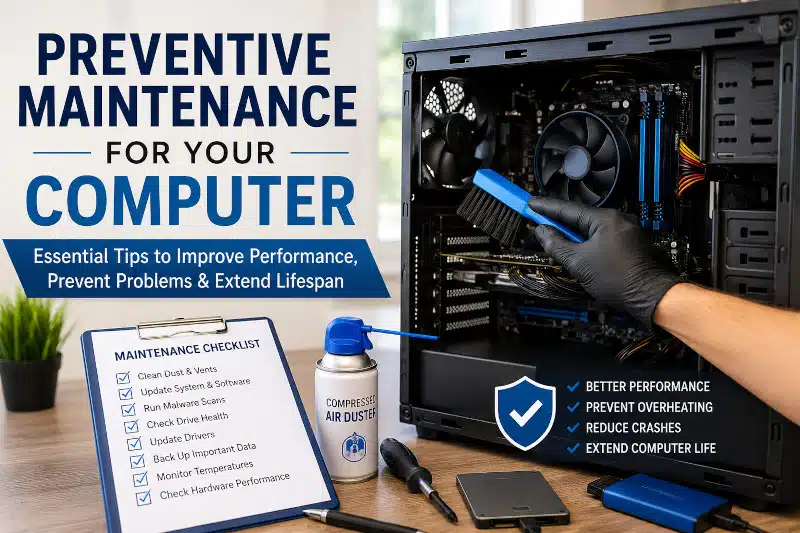
Computers have become an essential part of our daily lives, whether for work, school, gaming, or staying connected with friends and family. Like any machine, computers require regular care to operate efficiently and reliably. Preventive maintenance for your computer helps reduce the risk of hardware failures, improve performance, strengthen security, and extend your system’s lifespan.
Many costly computer repairs can be avoided through routine maintenance. By taking a proactive approach, you can keep your desktop or laptop running smoothly while protecting your important files and data.
What Is Preventive Maintenance for a Computer?
Preventive maintenance refers to the routine tasks performed to keep a computer functioning properly and prevent future problems. These tasks include cleaning internal components, installing software updates, scanning for malware, monitoring system performance, and backing up important files.
Regular computer preventive maintenance offers several benefits:
- Improves overall system performance
- Reduces the risk of hardware failure
- Prevents overheating issues
- Enhances cybersecurity protection
- Extends the life of computer components
- Helps avoid unexpected downtime
- Protects important data from loss
Whether you own a desktop PC or a laptop, preventive maintenance should be part of your regular technology routine.
Keep Your Computer Physically Clean
Dust is one of the most common causes of computer performance issues and hardware failures. Over time, dust accumulates inside the computer case, on cooling fans, and around air vents. Excessive dust restricts airflow, causing temperatures to rise and increasing wear on internal components.
To maintain proper airflow:
- Clean air vents regularly
- Use compressed air to remove dust from fans and heatsinks
- Wipe down external surfaces
- Keep the computer away from floors, pet hair, and dusty environments
Laptop users should pay special attention to the cooling vents, as restricted airflow can quickly lead to overheating.
If your computer frequently runs hot, you may also want to read our article on CPU Overheating While Gaming: Troubleshooting and Prevention.
Keep Your Operating System and Software Updated
Software updates do much more than add new features. They often include security patches, bug fixes, and performance improvements that help keep your system running efficiently.
Make it a habit to:
- Install Windows updates promptly
- Update web browsers
- Update productivity software
- Keep security applications current
- Remove outdated or unsupported programs
Running outdated software can expose your computer to vulnerabilities that cybercriminals actively target.
Run Regular Malware and Virus Scans
Cyber threats continue to evolve, making antivirus protection an important part of preventive computer maintenance.
Even careful users can accidentally download malicious files or visit compromised websites. Regular scans help identify threats before they cause significant damage.
Best practices include:
- Use reputable antivirus software
- Schedule automatic scans
- Enable real-time protection
- Avoid downloading software from untrusted sources
- Be cautious with email attachments and links
Combining good cybersecurity habits with regular maintenance significantly reduces your risk of infection.
Back Up Important Data Regularly
One of the biggest mistakes computer users make is waiting until disaster strikes before creating backups.
Hardware failures, malware infections, accidental deletions, and power surges can all result in permanent data loss.
Maintain a reliable backup strategy by:
- Using external hard drives
- Utilizing cloud backup services
- Scheduling automatic backups
- Testing backups periodically
Following the 3-2-1 backup rule is recommended:
- Keep 3 copies of your data
- Store data on 2 different types of media
- Keep 1 copy offsite or in the cloud
Monitor Hard Drive Health
Storage devices do not last forever. Traditional hard drives and solid-state drives eventually wear out and may fail without warning.
Signs of a failing drive include:
- Slow file access
- Frequent crashes
- Corrupted files
- Clicking or grinding noises (hard drives)
- Boot failures
Use monitoring tools to check drive health and replace aging drives before they fail.
Maintain Proper Cooling and Airflow
Heat is one of the leading causes of premature hardware failure.
Processors, graphics cards, power supplies, and storage devices all generate heat during operation. When cooling systems become clogged or malfunction, component temperatures can rise to dangerous levels.
Prevent overheating by:
- Cleaning cooling fans
- Verifying proper fan operation
- Maintaining unobstructed airflow
- Monitoring temperatures with diagnostic software
- Replacing failing fans when necessary
Laptop owners may also benefit from reading Why Do Laptop Fans Go Bad? Exploring the Common Causes and Solutions to better understand cooling system maintenance.
Check and Replace Thermal Paste When Needed
Thermal paste helps transfer heat from the processor to the heatsink. Over time, thermal paste can dry out and become less effective.
For systems that are several years old or experiencing higher-than-normal temperatures, replacing thermal paste may improve cooling performance.
This maintenance task is typically recommended every two to three years, depending on system usage and environmental conditions.
Update Drivers and Firmware
Device drivers allow hardware components to communicate properly with the operating system.
Outdated drivers can contribute to:
- Performance problems
- Hardware instability
- Peripheral malfunctions
- Security vulnerabilities
Regularly update:
- Graphics drivers
- Network adapters
- Motherboard chipset drivers
- Printer drivers
- SSD firmware
Installing updates directly from the manufacturer’s website is generally recommended.
Use Surge Protection and Battery Backup Solutions
Power fluctuations can damage sensitive electronic components.
Protect your equipment by using:
- Quality surge protectors
- Uninterruptible Power Supplies (UPS)
- Proper grounding
- Safe shutdown procedures during storms
A UPS can provide enough backup power to safely save your work and shut down your system during a power outage.
How Often Should You Perform Preventive Maintenance?
The frequency of maintenance depends on how heavily you use your computer and the environment in which it operates.
| Maintenance Task | Recommended Frequency |
| Dust Cleaning | Every 3–6 Months |
| Antivirus Scan | Weekly |
| Windows Updates | Monthly |
| Driver Updates | Every 2–3 Months |
| File Backups | Weekly |
| Hard Drive Health Check | Monthly |
| Thermal Paste Inspection | Every 2–3 Years |
| Internal Cleaning | Every 6–12 Months |
Following a routine schedule helps prevent small problems from becoming major repairs.
Preventive Maintenance Checklist for Computers
Use this simple checklist to keep your computer operating at peak performance:
- Clean dust from vents and fans
- Install Windows updates
- Update software applications
- Run antivirus and malware scans
- Back up important files
- Remove unused programs
- Check available disk space
- Monitor CPU and GPU temperatures
- Update hardware drivers
- Verify surge protector functionality
- Review startup programs
- Check hard drive health
Completing these tasks regularly can significantly improve reliability and performance.
Signs Your Computer Needs Maintenance
Many systems provide warning signs before a serious issue develops.
Watch for:
- Slow startup times
- Frequent system crashes
- Programs freezing or becoming unresponsive
- Excessive fan noise
- Overheating
- Random restarts
- Pop-up advertisements
- Unusual error messages
- Low storage warnings
Addressing these symptoms early can help prevent larger and more expensive repairs.
Professional Computer Maintenance Services in Davenport, FL
While many maintenance tasks can be performed at home, some situations require professional assistance.
A professional computer maintenance service can:
- Perform deep internal cleaning
- Diagnose overheating problems
- Test hardware components
- Remove persistent malware
- Optimize system performance
- Upgrade aging hardware
- Identify failing components before they cause data loss
At PCMechanic Computer Repair, we provide computer maintenance and tune-up services for customers throughout Davenport, Haines City, ChampionsGate, Four Corners, Celebration, Kissimmee, Clermont, and surrounding Central Florida communities.
Why Preventive Maintenance Matters
As a computer repair technician serving Central Florida, I’ve seen countless situations where routine preventive maintenance could have prevented expensive repairs or data loss. Many hardware failures, overheating issues, malware infections, and performance problems begin as small problems that grow over time.
A little maintenance today can save significant time, money, and frustration later.
Whether you’re maintaining a home computer, business workstation, gaming PC, or laptop, preventive maintenance remains one of the most effective ways to protect your investment and keep your system performing at its best.
Is your computer running slowly, overheating, or showing signs of performance issues? Contact PCMechanic Computer Repair today for professional maintenance services that help keep your computer running reliably and efficiently.

Frequently Asked Questions
What is preventive maintenance for a computer?
Preventive maintenance involves regularly cleaning, updating, securing, and monitoring a computer to prevent performance issues, hardware failures, and data loss.
How often should I clean my computer?
Most computers should be cleaned every three to six months. Systems located in dusty environments or homes with pets may require more frequent cleaning.
Does preventive maintenance improve computer performance?
Yes. Regular maintenance helps remove unnecessary files, improve airflow, reduce overheating, eliminate malware, and keep software up to date, all of which contribute to better performance.
Can preventive maintenance prevent computer crashes?
Preventive maintenance can significantly reduce crashes caused by overheating, malware infections, failing hardware, outdated drivers, and software conflicts.
Is professional computer maintenance worth it?
Professional maintenance can identify developing issues before they lead to major failures, helping extend your computer’s lifespan and reduce repair costs.
Don’t wait for a small problem to become an expensive repair. Whether you need a computer tune-up, virus removal, or hardware diagnostics, PCMechanic is here to help.