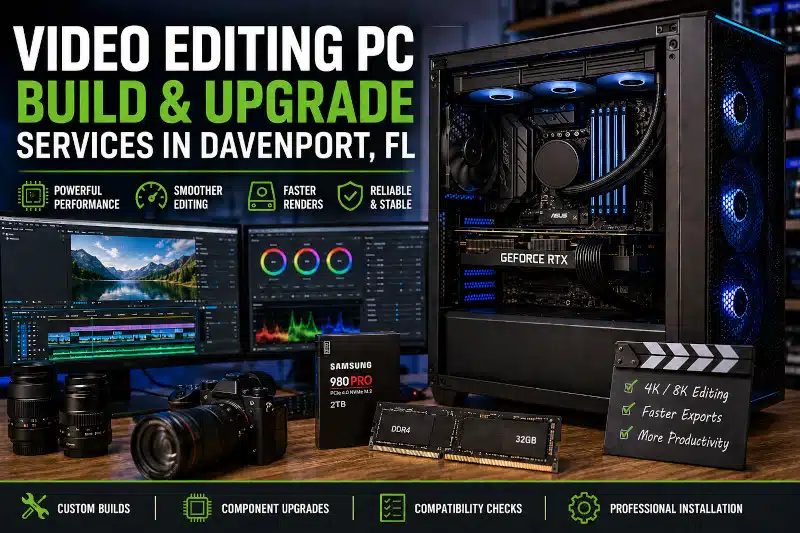
A Video Editing PC needs the right balance of processing power, graphics performance, memory, storage, and cooling. When one component cannot keep up with the workload, editing can become frustrating. Playback may stutter, exports can take longer, and demanding projects may expose performance limitations.
However, building a powerful editing computer isn’t simply about buying the most expensive components. Your editing software, video resolution, codecs, effects, project complexity, and budget should shape how you configure the system.
At PCMechanic Computer Repair in Davenport, FL, I provide custom PC builds and hardware upgrades for customers who need more performance from their video-editing computers. I can help evaluate component compatibility, assemble customer-supplied hardware, install upgrades, configure Windows and drivers, and test the completed system.
Whether you’re upgrading an existing computer or planning a new custom workstation, choosing components around your actual workload can help you spend your budget where it matters most.
What Makes a Video Editing PC Different?
A general-purpose computer may handle basic editing, but demanding projects can put sustained loads on several components at once.
Video editing relies heavily on the CPU for decoding, effects processing, rendering, and exporting. Compatible applications can also use GPU acceleration for effects, playback, encoding, color work, and other tasks.
Memory and storage performance also matter. Large projects, high-resolution footage, multiple applications, and complex timelines can significantly increase memory usage. At the same time, fast storage can improve access to active project files and media.
Therefore, a well-balanced Video Editing PC should be built around the full workflow rather than a single impressive component.
Choosing a CPU for Video Editing
The processor remains one of the most important components in many editing workflows.
However, choosing a CPU based only on core count or clock speed can be misleading. Processor architecture, generation, application behavior, codecs, and other factors can influence real-world performance.
Some editing tasks benefit significantly from additional cores. Others may respond differently depending on the software and media being used.
That’s why I prefer to consider the applications and workload before recommending a processor.
For an existing editing computer, a CPU upgrade may improve performance if the motherboard supports a worthwhile replacement. However, an older platform can sometimes limit your choices.
In those situations, replacing the processor may also require a new motherboard and possibly new RAM. So, consider the total upgrade cost before investing heavily in an aging platform.
How Much RAM Does a Video Editing PC Need?
Memory requirements vary considerably between editing workflows.
For many modern video-editing systems, 32GB can provide a practical starting point. However, that isn’t a universal requirement. Simpler projects may need less, while complex timelines, higher resolutions, large media files, effects, and heavy multitasking can benefit from additional memory.
More RAM isn’t automatically better if the existing capacity already meets the workload.
Before upgrading, I consider how much memory the system has, what the motherboard supports, how the memory is configured, and whether RAM capacity is actually causing the performance problem.
Compatibility also matters. Motherboards support specific memory generations, capacities, speeds, and configurations.
As a result, choose memory upgrades for your computer rather than buying based on capacity alone.
Choosing a GPU and Understanding VRAM
A graphics card can play an important role in a Video-Editing PC, especially when editing software supports GPU-accelerated processing.
However, a GPU that excels at gaming isn’t automatically the best choice for every editing workload.
Video-editing applications may use the graphics card for effects, color processing, playback, rendering, encoding, decoding, or other accelerated tasks. As a result, software support should influence GPU selection.
Video memory, or VRAM, can also become important. Higher-resolution projects, complex effects, and GPU-intensive workloads can increase graphics-memory requirements.
Instead of selecting a graphics card solely from gaming benchmarks, consider:
- Editing software requirements
- GPU acceleration support
- Video resolution
- Codec and media type
- Effects and color-grading workload
- VRAM requirements
- Power supply capacity
- Physical case clearance
- Cooling requirements
A GPU upgrade may also expose limitations elsewhere in an older computer. Therefore, I check power, space, cooling, and platform compatibility before recommending one.
SSD and Storage Configuration for Video Editing
Fast storage can make a noticeable difference when working with large video files and active projects.
NVMe SSDs offer high transfer speeds and low access times, making them well suited for operating systems, applications, active project files, caches, and demanding media workflows.
However, not every editing computer needs the same storage arrangement.
Depending on the workload and budget, a system might use either a single high-capacity SSD or several drives serving different purposes.
For example, separate storage can be useful for:
- Windows and applications
- Active projects and media
- Cache or temporary files
- Completed projects
- Backup and archival storage
Traditional hard drives can still provide economical high-capacity storage for archives and files that don’t require SSD performance.
Therefore, I don’t automatically recommend replacing every drive with an SSD. The better approach is to use storage appropriately for the workload.
Cooling a High-Performance Video Editing PC
Video editing can place sustained loads on the CPU and GPU for extended periods.
As a result, cooling matters.
A processor that reaches its thermal limits may reduce operating speed to control temperature. Meanwhile, poor case airflow can raise temperatures throughout the system.
An effective cooling configuration considers:
- CPU power and cooling requirements
- Graphics card heat output
- Case airflow
- Intake and exhaust configuration
- CPU cooler compatibility
- Fan placement
- Radiator clearance when applicable
- Dust accumulation
- Ambient conditions
Installing more fans doesn’t automatically solve a cooling problem. The fans, case ventilation, and component layout need to work together.
When upgrading a high-performance system, I also verify that the existing case can accommodate the new hardware and provide appropriate airflow.
Choosing the Right Power Supply
The power supply is another component you shouldn’t choose based on wattage alone.
A suitable PSU needs enough capacity for the installed hardware, but quality, required connectors, electrical protections, and compatibility also matter.
This matters even more when upgrading a graphics card.
A more powerful GPU may increase system power requirements and require connections that the existing PSU doesn’t provide. Also, an older or lower-quality power supply may not be a solid foundation for expensive new hardware.
Therefore, I evaluate the existing PSU as part of a significant CPU or GPU upgrade.
If the power supply itself needs replacement, my Power Supply Replacement Service can address that as part of preparing the computer for upgraded hardware.
Build Around Your Editing Software and Workflow
No single hardware configuration is ideal for every video editor.
Someone editing occasional 1080p projects has very different requirements from someone regularly working with high-resolution footage, complex effects, color grading, or large multicamera projects.
Software matters too.
Applications such as Adobe Premiere Pro and DaVinci Resolve can use system resources differently. Performance can also change depending on the codecs, effects, plugins, resolution, and export formats involved.
For that reason, I prefer to start with questions such as:
- Which editing applications do you use?
- What resolution do you normally edit?
- What types of footage do you work with?
- Are playback or export times the main problem?
- Do you use effects or extensive color correction?
- How much storage do your projects require?
- What hardware does the computer currently have?
- What is your upgrade or build budget?
Your answers help determine whether to prioritize CPU performance, GPU capability, RAM, storage, cooling, or a combination of components.
Should You Upgrade or Build a New Video Editing PC?
Not every slow video editing computer needs replacing. For example, consider a system with a capable processor but only 16GB of RAM and an older SATA drive.
If the motherboard supports additional memory and faster storage, upgrading to 32GB or more RAM and an NVMe SSD may improve editing responsiveness. Therefore, a few carefully selected upgrades could extend the computer’s useful life.
However, an older system with limited processor performance, restricted motherboard compatibility, or inadequate expansion options presents a different situation. In that case, building a new video editing PC may offer better long-term value.
I can evaluate your existing hardware and explain which option makes the most financial sense. My goal is to help you get reliable editing performance without unnecessary component replacements.
Should You Upgrade or Build a New Video Editing PC?
Not every slow editing computer needs replacing.
Sometimes a targeted upgrade can improve performance meaningfully at a much lower cost than a new system.
For example, an otherwise capable computer may benefit from more RAM, faster storage, a better GPU, improved cooling, or another hardware upgrade.
However, upgrading becomes less attractive when you need to replace several major components at once.
Suppose an older computer needs a new CPU, motherboard, RAM, GPU, power supply, and cooling system. At that point, investing in a new platform may provide better long-term value.
I evaluate the existing hardware before recommending major upgrades. If the foundation is still appropriate, upgrading the existing computer makes sense.
If the platform is too limiting, a new custom build may be the better investment.
Need more performance from your video editing PC? Contact PCMechanic Computer Repair in Davenport, FL, for professional hardware upgrades or a custom PC build tailored to your editing needs.

Video Editing PC Hardware Upgrades
A Video Editing PC upgrade should address a real limitation rather than replacing hardware just because something newer exists.
Depending on the computer and workload, useful upgrades may include:
RAM upgrades: Helpful when projects or multitasking exceed the system’s available memory.
NVMe SSD upgrades: Useful when storage performance or capacity limits the workflow.
GPU upgrades: Appropriate when compatible editing applications can benefit from additional GPU performance or VRAM. If your current editing computer needs more graphics performance, my Graphics Card (GPU) Upgrade & Installation Service in Davenport, FL covers compatibility evaluation and professional GPU installation
CPU upgrades: Worth considering when the existing motherboard supports a meaningful improvement.
Cooling upgrades: Helpful when temperatures, noise, or sustained performance indicate the current cooling system is inadequate.
Power supply upgrades: Sometimes necessary when new hardware increases power or connector requirements.
Windows, Drivers, and System Configuration
Good hardware still needs an appropriately configured operating system and drivers.
After assembling or substantially upgrading a computer, I can install the required drivers for the motherboard, graphics, network, audio, and other hardware.
I also verify that Windows recognizes the installed hardware and that the computer operates properly after the changes.
For a new custom system, a clean Windows installation may be appropriate. My Windows Installation & Reinstallation Service includes professional Windows installation, driver setup, updates, and system preparation.
However, software configuration can’t compensate for hardware that is fundamentally underpowered for the workload.
The goal is to ensure the operating system and drivers let the installed hardware operate as intended.
Protecting Video Projects and Important Files
High-performance storage improves an editing workflow, but fast storage isn’t the same as data protection.
Any storage device can eventually fail. Accidental deletion, file corruption, malware, hardware problems, and other events can also put important project files at risk.
So valuable footage and completed projects shouldn’t live on only one drive.
The right backup strategy depends on how much data you have, how important it is, and how often files change.
If you’re replacing a computer or storage drive and need help moving accessible files, my Data Backup & File Transfer service can help transfer important data to another healthy storage device or computer.
Keep in mind that I don’t perform advanced recovery from physically failed drives. Back up important video projects before a storage failure occurs.
Professional Video Editing PC Build Services in Davenport, FL
If you need a new editing workstation, I can professionally assemble a custom PC around compatible components.
You can purchase the components yourself and bring them to me for assembly. If you’re still selecting hardware, I can also help review component compatibility before the build.
Professional assembly can include:
- Component compatibility verification
- Motherboard and CPU installation
- RAM installation
- GPU installation
- Storage installation
- CPU cooling installation
- Power supply installation
- Cable management
- BIOS configuration
- Windows installation
- Hardware drivers
- System configuration
- Temperature checks
- Stability testing
I provide one-on-one service, so your computer won’t be passed between technicians.
The goal is a clean, stable system configured around the hardware and workload you’ve selected.
If you’re considering a completely new computer, my Gaming PC Build Services in Davenport, FL page explains my approach to component compatibility, professional assembly, BIOS configuration, and system testing. I apply the same attention to hardware compatibility and reliability when building computers for video editing and content creation.
Video Editing PC Services in Davenport and Nearby Areas
I provide Video Editing PC build and upgrade services from PCMechanic Computer Repair in Davenport, Florida.
Customers bring their computers or components to me for service rather than scheduling an on-site visit.
I also serve customers from surrounding communities, including ChampionsGate, Loughman, Haines City, Four Corners, Celebration, Clermont, and Kissimmee.
Whether you already own an editing computer that needs more performance or you’re preparing to build a new workstation, I can help determine which hardware changes make practical sense.
Frequently Asked Questions About Video Editing PCs
How much RAM do I need for a Video Editing PC?
It depends on your editing software, resolution, project complexity, effects, and multitasking requirements. For many modern editing workflows, 32GB is a practical starting point. However, simpler projects may require less, while demanding workflows may benefit from more.
Do I need an expensive graphics card for video editing?
Not necessarily. GPU requirements depend on your editing application and workload. Some software uses extensive GPU acceleration, while other tasks rely more on the CPU. VRAM requirements can also increase with demanding projects.
Is an NVMe SSD worth it for video editing?
NVMe storage can be very useful for active projects, applications, caches, and high-performance media workflows. However, slower, high-capacity storage can still work well for backups and archives.
Can I upgrade my current computer for video editing?
Possibly. Upgrading RAM, storage, GPU, CPU, cooling, and the power supply may improve an existing system. However, evaluate compatibility and the platform’s age before investing heavily in upgrades.
Is a Gaming PC good for video editing?
It can be. Gaming PCs and editing workstations often use similar high-performance hardware. However, the ideal component balance can differ because editing software may place different demands on the CPU, GPU, VRAM, memory, and storage.
Can I bring my own components for a custom Video Editing PC?
Yes. You can purchase the components yourself and bring them to me for professional assembly. I can also help review compatibility before you purchase the hardware.
Do you install Windows on custom editing computers?
Yes. If needed, I can install Windows, install the appropriate hardware drivers and updates, and perform basic system configuration to prepare the computer for use.
Can you recover video projects from a failed drive?
I don’t perform advanced data recovery from physically failed storage devices. I can assist with accessible data and file transfers as long as the source drive remains readable. Always back up important project files separately.
Professional Video Editing PC Services in Davenport, FL
A properly configured Video Editing PC should match the software, media, and workload you actually use.
Sometimes a targeted upgrade is enough to improve an existing system. In other situations, an aging platform makes a new custom build the more practical investment.
If you need help upgrading an existing editing computer or professionally assembling a new workstation, contact PCMechanic Computer Repair in Davenport, FL. I can help with component compatibility, custom assembly, hardware upgrades, Windows installation, drivers, cooling, and system testing.