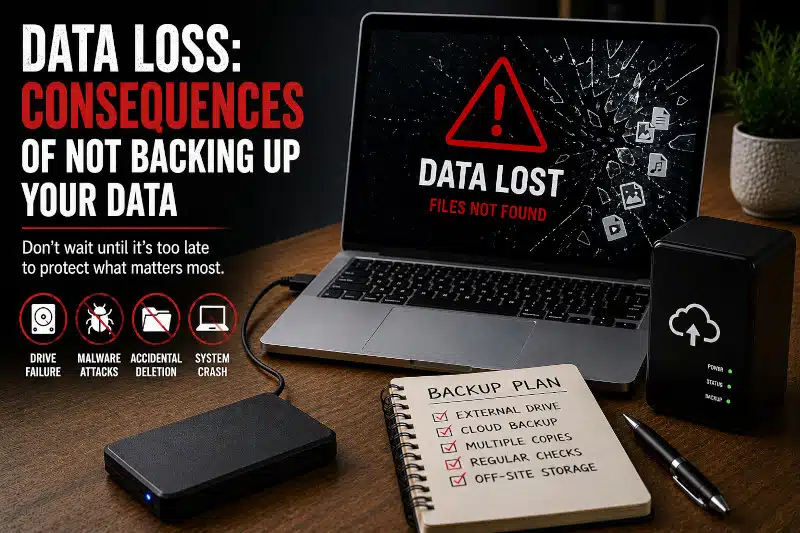
Data loss can happen without warning and may affect family photos, important documents, financial records, work files, videos, and other information you cannot easily replace. A hard drive or SSD can fail, malware can damage files, Windows can develop serious problems, or someone can accidentally delete important information.
The consequences become much more serious when the computer contains the only copy of those files.
Many people don’t think about backups until something goes wrong. Unfortunately, once a storage device has physically failed or important files have disappeared, getting them back may be difficult, expensive, or impossible.
Understanding the causes and consequences of data loss can help you protect important information before a computer problem turns into a much larger one.
What Is Data Loss?
Data loss occurs when information becomes unavailable, damaged, deleted, corrupted, or otherwise inaccessible.
Sometimes the problem affects only a few files. In other situations, an entire storage device may become unreadable.
Data loss can result from hardware failure, software problems, malware, accidental deletion, physical damage, or other unexpected events.
The computer itself may also appear to have failed even though the files remain intact. For example, Windows may fail to boot while the storage device remains healthy and readable.
That distinction matters because the appropriate response depends on what actually caused the problem.
Common Causes of Data Loss
There isn’t one single cause of data loss. Computers depend on hardware, software, storage devices, and users all working together.
Common causes include:
- Hard drive failure
- SSD failure
- Accidental deletion
- Malware or ransomware
- Windows corruption
- File-system problems
- Power-related problems
- Physical damage
- Theft
- Improper shutdowns
- Storage-device damage
- Human error
Some problems develop gradually, while others occur suddenly.
That’s why waiting for obvious warning signs before creating a backup can be risky.
Data Loss From Hard Drive and SSD Failure
Storage devices don’t last forever.
Traditional hard disk drives contain mechanical components that can wear out or fail. Solid-state drives don’t have moving parts, but SSDs can still develop electronic or memory-related failures.
A failing storage device may produce symptoms such as:
- Files that suddenly become inaccessible
- Unusual delays when opening files
- Frequent read or write errors
- Windows freezing during file access
- Drives disappearing intermittently
- Windows failing to start
- Unusual mechanical noises from a hard drive
However, a drive can sometimes fail without providing much warning.
When important files exist only on that device, a hardware failure can turn a computer repair problem into a data-loss problem.
A current independent backup reduces your dependence on the original storage device.
Accidental Deletion and Human Error
Hardware doesn’t have to fail for files to disappear.
People accidentally delete files, overwrite documents, format the wrong storage device, or replace a file with an unwanted version.
A simple mistake can become serious when no other copy exists.
For example, accidentally deleting a standard downloaded program usually isn’t catastrophic because you can download it again. Accidentally deleting years of family photographs is very different.
That’s one reason your backup priorities should focus heavily on information you cannot easily recreate.
Malware and Ransomware Can Put Files at Risk
Malicious software can also cause data loss or render files inaccessible.
Some malware damages files or interferes with Windows. Ransomware can encrypt information and prevent normal access to documents, photos, and other data.
Importantly, not having a backup doesn’t make a security breach more likely. Instead, the lack of a usable backup can make the consequences of an attack much worse.
If malware is causing problems on a computer, my Computer Virus Removal Service addresses malware and related security issues.
However, malware removal isn’t a substitute for maintaining backups. The safest time to create independent copies of important information is before an infection or other problem occurs.
Windows Problems Can Make Files Seem Lost
A computer that won’t start doesn’t automatically mean the files are gone.
Windows corruption, damaged startup files, software conflicts, or another system problem can prevent the operating system from loading even when the storage device remains readable.
In some cases, accessible personal files can still be copied through another appropriate method.
That’s very different from a physically failed storage device.
If Windows has become too damaged or unstable to repair normally, my Windows Installation & Reinstallation Service may be appropriate. Whenever possible, important accessible files should be addressed before major operating-system work begins.
Physical Damage, Theft, and Unexpected Events
Backups also protect against problems unrelated to Windows or normal component wear.
A computer can suffer physical damage from an accident, electrical event, liquid exposure, or another unexpected incident. A laptop may also be lost or stolen.
If every important file exists only inside that computer, losing the computer can mean losing the only copy of the information.
This is also why keeping every backup in exactly the same physical location has limitations.
An independent copy stored elsewhere can provide an additional layer of protection if an event affects the computer and nearby storage simultaneously.
What Can You Lose When You Don’t Have a Backup?
The value of data isn’t determined by how much storage space it occupies.
A small folder containing family photographs or financial documents may be far more important than hundreds of gigabytes of replaceable software.
Personal data loss can involve:
- Family photos
- Home videos
- Personal documents
- Tax records
- Financial information
- Schoolwork
- Resumes
- Creative projects
- Scanned documents
- Business records
- Spreadsheets
- Other irreplaceable information
Windows and many applications can usually be reinstalled.
Personal files may be irreplaceable.
Therefore, when deciding what deserves the strongest backup protection, prioritize the information you would find most difficult to recreate.
The Personal Consequences of Data Loss
Not every consequence can be measured financially.
Losing photographs of family members, childhood videos, personal writing, or other sentimental information can have a permanent impact.
A replacement computer won’t restore those files.
This is particularly important because storage devices often hold years of information. People may upgrade from one computer to another while continuing to transfer their photos and documents.
Eventually, one storage failure can affect information accumulated over many years.
Maintaining separate copies helps prevent any single device from becoming a single point of failure for irreplaceable memories and records.
Financial and Productivity Consequences of Data Loss
Data loss can also cost time and money.
For an individual, losing financial documents or work files may require hours of reconstruction. Important records may need to be downloaded again, recreated, or requested from another source.
For someone who uses a computer for work or runs a small business, the impact can be greater.
Lost information may lead to:
- Interrupted work
- Missed deadlines
- Lost productivity
- Time spent recreating documents
- Additional repair or recovery expenses
- Difficulty accessing important records
Even when some information can eventually be reconstructed, the process may consume substantial time.
A reliable backup can significantly reduce that disruption.
Data Recovery Is Not a Substitute for Backup
One of the most important distinctions to understand is the difference between backup and data recovery.
A backup creates another copy before something goes wrong.
Data recovery attempts to retrieve information after files have already become inaccessible or disappeared.
Recovery isn’t guaranteed.
If a storage device physically fails, retrieving information may require specialized equipment and advanced recovery techniques. Those services can also be expensive.
Therefore, relying on future data recovery instead of maintaining backups is risky.
My services don’t include advanced recovery from physically failed or unreadable storage devices, nor do I provide deleted-file recovery.
When a drive remains healthy and readable, however, ordinary backup or file-transfer options may still be available.
Need help protecting important files before a computer repair, Windows reinstallation, or system replacement? Contact PCMechanic Computer Repair in Davenport, FL for professional data backup and file transfer assistance.

How Backups Reduce the Consequences of Data Loss
A backup doesn’t prevent every computer problem.
It won’t stop a hard drive from failing, prevent Windows corruption, or guarantee that malware never reaches a computer.
Instead, a backup reduces your dependence on the original copy.
If one storage device fails but another current copy exists elsewhere, the failure becomes much easier to manage.
The strongest backup strategies generally avoid relying on a single computer or storage device.
For detailed information on local storage, off-site backups, backup frequency, the 3-2-1 approach, and testing your backups, see my guide, Data Backup Strategies: How to Protect Your Important Files.
Don’t Wait for Warning Signs Before Backing Up
One of the biggest mistakes is waiting until a computer begins behaving strangely before thinking about important files.
Sometimes storage problems provide warning signs. Sometimes they don’t.
Creating backups while the computer and storage device are functioning normally is much safer than attempting to preserve information after a failure begins.
Ask yourself:
If this computer stopped working today, which files would I be most concerned about losing?
Those files should receive priority.
You should also consider how much recent information you could afford to lose. Someone who creates important files every day generally needs more frequent backups than someone whose data rarely changes.
The right schedule depends on your situation, but having no backup schedule at all creates unnecessary risk.
One Backup May Not Be Enough
Copying important files to a single external drive is better than having no backup, but it still leaves you dependent on that device.
External drives can fail too.
In addition, a backup kept next to the computer may be affected by theft, physical damage, or another event affecting the same location.
Using more than one independent copy provides stronger protection.
You don’t necessarily need a complicated enterprise backup system. The important principle is to avoid letting a single failure eliminate every available copy of something you cannot replace.
Verify That Your Backups Actually Work
Creating a backup isn’t enough if you never confirm that the files are there.
A failed backup process can create a false sense of security.
Periodically check that:
- Important folders are included
- Recent files appear in the backup
- The backup destination has available space
- Automated backup processes still run
- Selected files can be opened or restored
- Off-site or cloud accounts remain accessible
A backup only provides useful protection when you can retrieve the information you need.
When Data Backup and File Transfer Can Help
Sometimes the files aren’t lost yet, but the computer needs repair, Windows work, replacement, or another significant change.
When the source storage device remains readable and accessible, my Data Backup & File Transfer in Davenport, FL service can help preserve important personal files or move them to another suitable device.
This may be useful when:
- Preparing for certain computer repairs
- Preserving files before a Windows reinstallation
- Moving accessible files from an old computer
- Copying important data to external storage
- Transferring files between computers
- Replacing an aging computer
However, this service isn’t advanced data recovery.
If a drive has physically failed, become unreadable, or requires deleted-file recovery, a specialized data-recovery company may be necessary.
Frequently Asked Questions About Data Loss
What is data loss?
Data loss occurs when files become deleted, damaged, corrupted, inaccessible, or otherwise unavailable. It can affect individual files or an entire storage device.
What are the most common causes of data loss?
Common causes include hard drive or SSD failure, accidental deletion, malware, Windows problems, physical damage, theft, and human error.
Can an SSD suddenly lose data?
Yes. SSDs don’t have the mechanical components found in traditional hard drives, but they can still fail due to electronic, controller, memory, or other hardware issues.
Does a computer that won’t boot mean my files are gone?
Not necessarily. Windows may fail to start while the storage device remains healthy and readable. The cause needs to be determined before assuming the data is lost.
Can malware cause data loss?
Yes. Some malware can damage files, interfere with Windows, or make information inaccessible. Ransomware can encrypt files and prevent normal access to them.
Does having a backup prevent data loss?
A backup doesn’t prevent the original device from failing or files from being damaged. Instead, it provides another copy that may allow you to recover your information.
Is an external hard drive enough for backup?
It provides an additional copy, but relying on a single external drive still leaves you vulnerable if that drive fails or if the same event affects both devices. Multiple independent copies provide stronger protection.
Can you recover files from a physically failed hard drive?
I don’t provide advanced recovery from physically failed or unreadable storage devices. Those situations may require a specialized data-recovery company.
Can you recover accidentally deleted files?
No. Deleted-file recovery is outside the scope of my Data Backup & File Transfer service.
Can you back up files if Windows won’t start?
Sometimes. If Windows won’t boot but the storage device remains healthy and readable, accessible personal files may still be copied using another appropriate method.
Protect Your Important Files Before Data Loss Happens
Data loss becomes much more serious when an important file exists in only one place.
Hardware can fail. Windows can develop problems. Malware can interfere with files, and people can accidentally delete information. Some events provide warning signs, while others happen unexpectedly.
The best time to think about important files is while they are still accessible.
Maintain independent copies of information you cannot replace, update those backups regularly, and occasionally confirm that you can retrieve the files.
If you need help preserving accessible documents, photos, videos, or other personal files before computer repair, Windows work, or computer replacement, contact PCMechanic Computer Repair for professional Data Backup & File Transfer services in Davenport, FL.