By Jose Ortiz
This tutorial will show you how to remove adware using AdwCleaner on Windows 7, 8, 8.1, and 10.
Adware, ad-supported software, is a program that displays unwanted advertisements in the form of pop-up or banner ads.
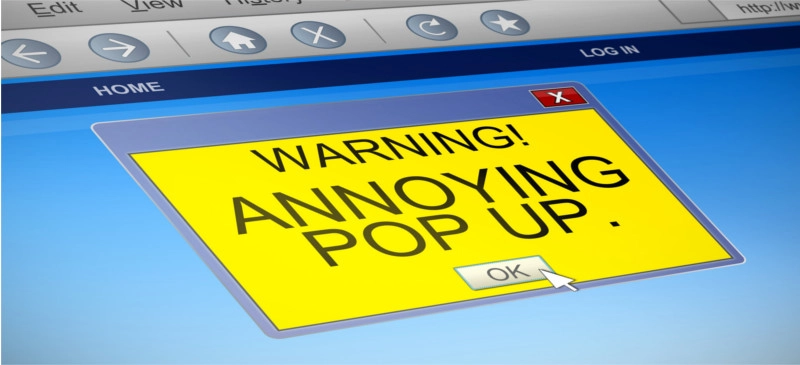
These nasty programs can hijack your browser and redirect your search query to other websites you are not interested in.
Adware can affect computer performance and stability.
Most of the time, adware programs are bundled with other free software and install without the user’s knowledge or consent.
Symptoms that you are infected with adware are:
- You see pop-ups and banner ads regularly.
- Your homepage has changed, and you cannot revert it.
- Your computer is running slower than usual.
- Your browser now has a toolbar or search bar that wasn’t there before.
To get rid of adware, we are going to use AdwCleaner. AdwCleaner is a unique program that removes adware, toolbars, Potentially Unwanted Programs, and browser hijackers from your computer.
As of this writing, AdwCleaner is compatible with Windows 7, 8, 8.1, and 10 in 32-bit and 64-bit.
How to Get Rid of Adware
Before we start removing adware, we need to protect our system by creating a Restore Point.
If you encounter any problems while removing adware, you can use a restore point to revert your computer’s system files to an earlier state.
1. CREATE A RESTORE POINT
- Press the key combination [Windows logo] + [R] to open the Run tab and type sysdm.cpl ,4.
- Click Ok.

- If the User Account Control window appears, click Yes or Continue.

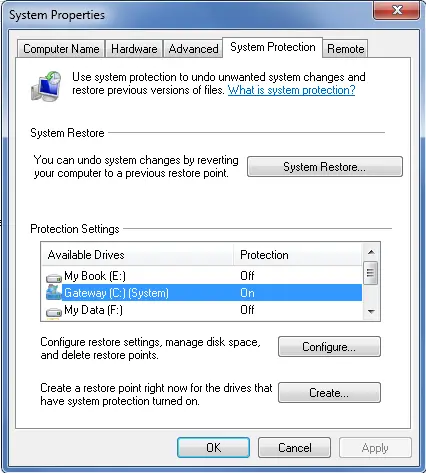
- This will bring up the System Properties box. Under available drives, protection should be turned on for the C: drive.
If protection for the C: drive is not on, then…
- Select the C: drive.
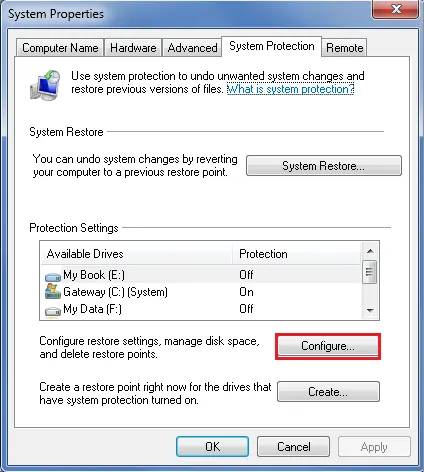
- Click the Configure button.
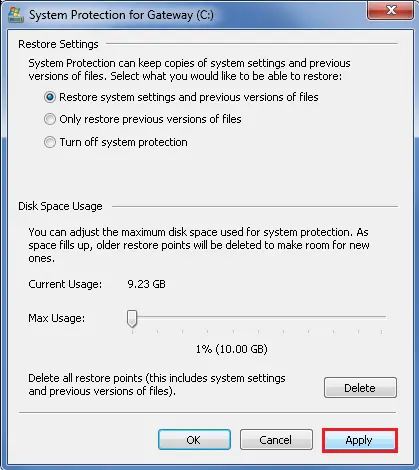
- Click the radio button “Restore system settings and previous version of files.”
- Move the slider to 1%. (based on a 1 TB hard drive). 2% for smaller drives.
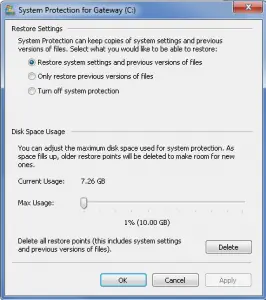
- Click Apply and then Ok.
- Click the Create button.

- Type a description to help you identify the restore point. (The current date and time are added automatically.)
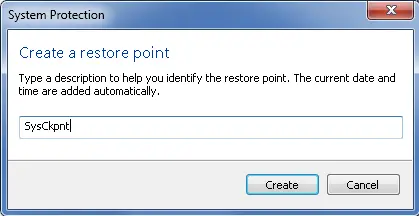
- Click the Create button. A Restore Point will be created.
2. DOWNLOAD MALWAREBYTES ADWCLEANER
(WARNING: Always have data backed up before attempting to run 3rd-party software. A system image is also advisable.)
I know that you are in a hurry to get rid of adware, so go to this page to download AdwCleaner.
Notice: Your browser security settings or anti-virus scanner may prevent AdwCleaner from downloading. If this is the case, you will be given the option to run it instead.
- Click the Free Download button.
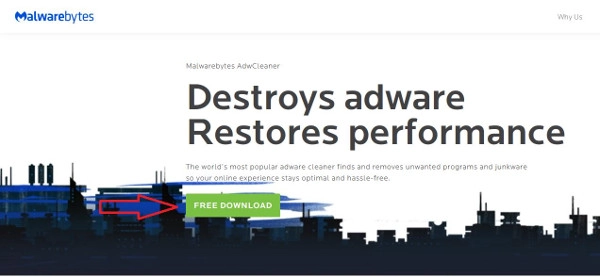
- Click Save As and select Desktop as the destination.

Before starting AdwCleaner, close all open programs and Internet browsers. This is important. If you can, temporarily disable your antivirus software before running AdwCleaner.
- On desktop, double-click the AdwCleaner icon.

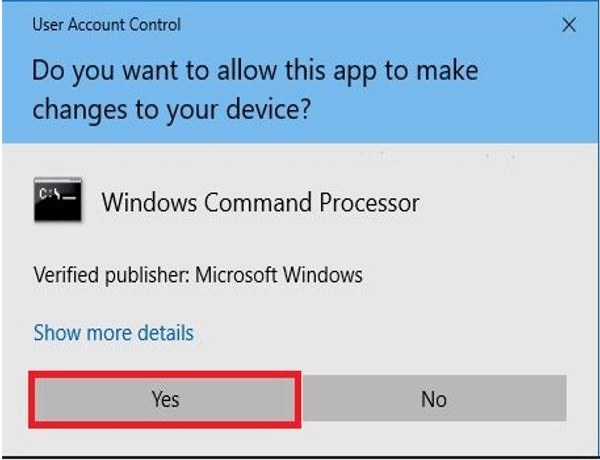
- Click Yes in the User Account Control dialog box.
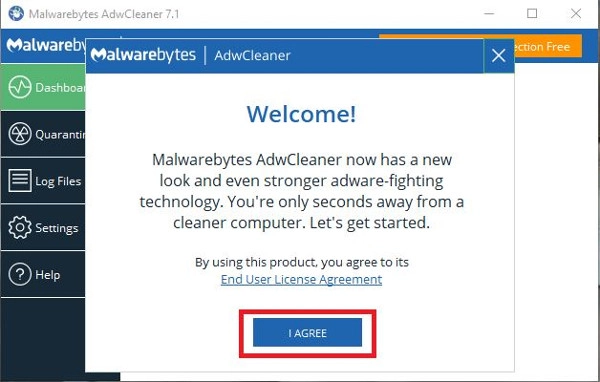
- Click “I Agree” to accept the End User License Agreement.
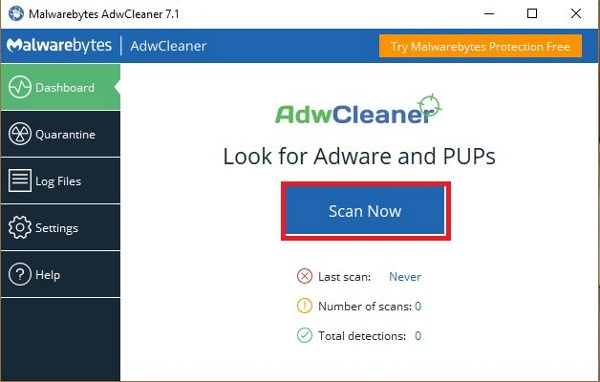
- Click Scan Now in the Malwarebytes Adware Cleaner dashboard.

- Adware scanning in progress.
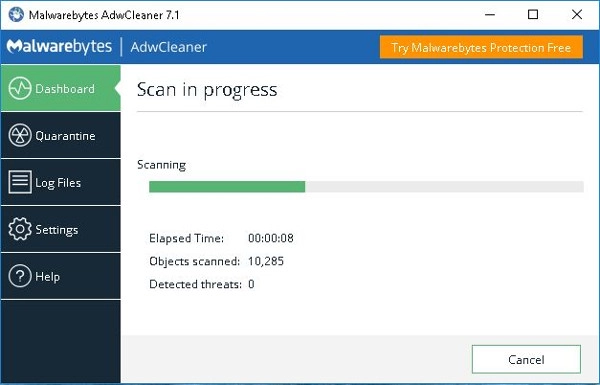
- Adware scan results. Click Clean & Repair.
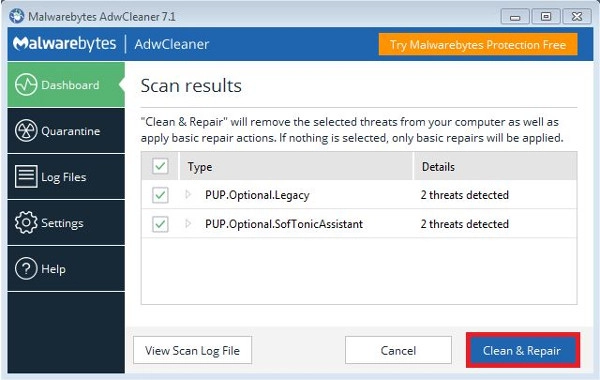
- Click Clean & Restart Now.
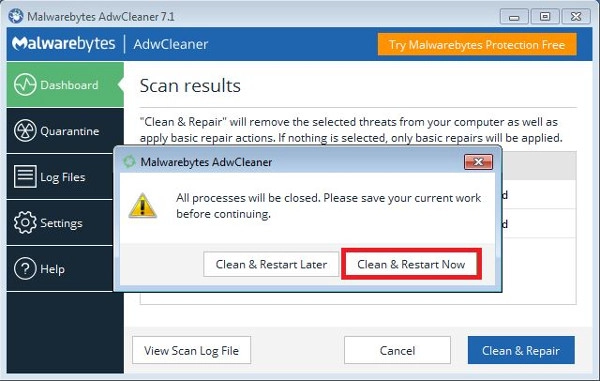
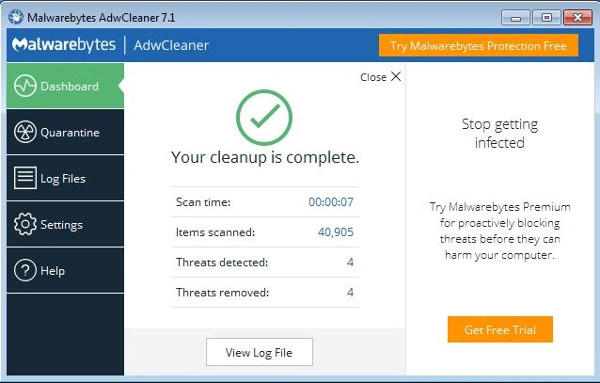
- Once back on the desktop, Malwarebytes Adware Cleaner will display the cleanup is complete dashboard. X out to close the program. You’re done and free of adware.
3. RESET BROWSER TO DEFAULT SETTINGS
(Make sure to back up your favorites.)
One more step that I like to take is to reset all browsers to their default settings.
- How to reset the Internet Explorer link.
- How to reset the Google Chrome link.
- How to reset the Firefox link.
Now let’s put a plan together so you can stay malware- and spyware-free. Once you have completed AdwCleaner, run a scan with Malwarebytes. Then run a complete scan with SuperAntiSpyware. In the future, run AdwCleaner when necessary.
In addition, you should have an active antivirus scanner running in the background.
I like to run a Malwarebytes scan daily. I then run a full scan weekly with SuperAntiSpyware and my antivirus software. This layered approach will provide greater protection than relying on one antivirus scanner.
Read “Is Antivirus Software Dependable” to find out why antivirus software is not enough to combat malware.
There you have it. You are ad-ware-free. You should not see any pop-ups in your browser. This “How to Get Rid of Adware” tutorial has been put together to help the consumer battle adware infections.
If you find this tutorial helpful, please share it or like it so others may benefit from it.
PCMechanic Computer Repair in Davenport, FL, can help you remove adware from your computer.
Click the Service Request button below to get in touch with me.

Thank you.
Pingback: Guide to Speed Up Internet Explorer - PCMechanic Computer Repair Davenport, FL
You are 100% right when you say antivirus software is not enough to combat against malware, especially if your computer is already infected. In that case you need something like SuperAntiSpyware or Malwarebytes to remove it.
I use both Malwarebytes and SuperAntiSpyware to clean customer’s computer. In addition to having an active anti-virus software, I use MBAM and SAS on a daily and weekly basis. I believe in a layered approach to computer security. Thanks for your reply.